Adding custom CSS to Squarespace transforms a good website into something unmistakably yours. While Squarespace's design tools handle the basics beautifully, CSS customization opens doors to precise styling control that sets your site apart from every other template user.
Smart CSS customization means understanding both what's possible and what's practical. After years of tweaking Squarespace sites for mission-driven brands, I've learned which CSS techniques deliver real impact without breaking your site's responsiveness or future updates.
Understanding Squarespace CSS Customization in 2026
Squarespace CSS customization lets you override default template styles with your own code. Think of it as a translation layer between your design vision and what Squarespace's style editor can achieve. You write CSS rules, Squarespace applies them on top of existing styles, and visitors see your customized design.
The platform has evolved significantly since 7.0. Version 7.1 brought structural changes that make CSS targeting more consistent but require different approaches than older tutorials suggest. Understanding these differences saves hours of frustration.
Most designers use CSS for typography refinements, spacing adjustments, hover effects, and hiding elements the style editor can't touch. Advanced users push further with animations, custom layouts, and responsive breakpoints. The key is knowing which customizations belong in CSS versus Squarespace's built-in tools.
Accessing the CSS Editor (Current Location for 2026)
Squarespace moved the CSS editor location in late 2025, catching many designers off guard. Here's where to find it now:
Navigate to Website → Pages
Click Website Tools at the bottom of the panel
Select Custom CSS
The editor opens in a sidebar with line numbers, syntax highlighting, and live preview. You can resize the panel by dragging its edge, helpful when working with longer code blocks.
Personal plans include CSS access, despite what outdated documentation might suggest. Business plans add JavaScript injection capabilities through Code Injection, but CSS works across all paid tiers.
Essential CSS Properties for Squarespace Customization
Certain CSS properties prove invaluable for Squarespace customization. Font styling remains the most common request, especially for brands using custom fonts beyond Squarespace's library.
Typography adjustments typically involve:
/* Refine heading styles */ h1 { font-size: clamp(2rem, 5vw, 3.5rem); line-height: 1.2; letter-spacing: -0.02em; } /* Improve paragraph readability */ p { font-size: 1.125rem; line-height: 1.7; max-width: 65ch; }
Color overrides fix those stubborn elements that ignore Squarespace's color themes. Newsletter blocks, form fields, and system pages often need direct targeting:
/* Fix newsletter block styling */ .newsletter-block input { background-color: #f5f5f5; border: 2px solid #333; color: #333; } /* Style form placeholders */ ::placeholder { color: #999; opacity: 1; }
Spacing control solves layout issues the padding controls miss. Negative margins, custom gaps, and precise positioning give you pixel-perfect control:
/* Tighten section spacing */ .page-section { padding-top: 3rem; padding-bottom: 3rem; } /* Create overlapping sections */ #specific-section { margin-top: -5rem; position: relative; z-index: 10; }
Targeting Specific Elements in Squarespace 7.1
Squarespace 7.1's section-based structure requires different targeting strategies than 7.0's block system. Every section gets a unique data-section-id attribute, making precise targeting straightforward once you know where to look.
Finding section IDs takes seconds with browser tools:
Right-click the section you want to style
Select "Inspect" or "Inspect Element"
Look for
data-section-id="abc123"in the HTMLTarget with
[data-section-id="abc123"]in your CSS
Block-level targeting works similarly. Each block type has consistent class names:
/* Target all image blocks */ .sqs-block-image { border-radius: 8px; overflow: hidden; } /* Target specific text block */ #block-yui_123456789 { background: rgba(255,255,255,0.9); padding: 2rem; }
Collection pages need special attention. Blog posts, events, and products use different class structures:
/* Style blog post titles */ .blog-item-title { font-weight: 600; margin-bottom: 0.5rem; } /* Customize product grid */ .products .grid-item { transition: transform 0.2s ease; } .products .grid-item:hover { transform: translateY(-4px); }
Mobile-First CSS Strategies
Mobile traffic dominates most Squarespace sites, yet many CSS tutorials ignore responsive design. Writing mobile-first CSS prevents desktop styles from breaking phone layouts.
Start with mobile styles as your base:
/* Mobile-first approach */ .custom-heading { font-size: 1.5rem; padding: 1rem; } /* Tablet and up */ @media (min-width: 768px) { .custom-heading { font-size: 2rem; padding: 2rem; } } /* Desktop */ @media (min-width: 1024px) { .custom-heading { font-size: 2.5rem; padding: 3rem; } }
Squarespace's built-in breakpoints occur at 768px and 1024px. Matching these in custom CSS maintains consistency with platform behavior.
Test every CSS addition on actual devices, not just browser resize. Touch interactions, viewport units, and font rendering differ between desktop simulation and real phones. The Squarespace mobile app's preview feature helps, but nothing beats loading your site on an actual phone.
Advanced CSS Techniques for Squarespace
Beyond basic styling, CSS enables sophisticated effects that make templates feel custom-built. CSS animations bring static pages to life without JavaScript dependencies.
Smooth scroll animations enhance user experience:
/* Fade in on scroll */ .fade-in-section { opacity: 0; transform: translateY(20px); transition: all 0.6s ease; } .fade-in-section.is-visible { opacity: 1; transform: translateY(0); }
Custom hover states differentiate interactive elements:
/* Button with sliding background */ .sqs-block-button-element { position: relative; overflow: hidden; z-index: 1; } .sqs-block-button-element::before { content: ''; position: absolute; top: 0; left: -100%; width: 100%; height: 100%; background: rgba(0,0,0,0.1); transition: left 0.3s ease; z-index: -1; } .sqs-block-button-element:hover::before { left: 0; }
CSS Grid unlocks layout possibilities Squarespace's columns can't achieve:
/* Custom grid layout */ .custom-grid { display: grid; grid-template-columns: repeat(auto-fit, minmax(300px, 1fr)); gap: 2rem; } /* Span specific items */ .custom-grid > :first-child { grid-column: 1 / -1; } .custom-grid > :nth-child(3) { grid-row: span 2; }
CSS Performance and Optimization
Every line of CSS impacts page load speed. Bloated stylesheets slow sites, frustrate visitors, and hurt search rankings. Strategic CSS organization keeps performance sharp.
Combine similar rules to reduce redundancy:
/* Instead of this */ h1 { color: #333; } h2 { color: #333; } h3 { color: #333; } /* Write this */ h1, h2, h3 { color: #333; }
Avoid overly specific selectors that create maintenance headaches:
/* Too specific */ body #page section[data-section-id="123"] .row .col .content h2 { margin-top: 2rem; } /* Better */ [data-section-id="123"] h2 { margin-top: 2rem; }
CSS custom properties (variables) simplify updates across your stylesheet:
:root { --brand-color: #2a4d69; --accent-color: #f39c12; --spacing-unit: 1.5rem; } .custom-section { background: var(--brand-color); padding: var(--spacing-unit); } .custom-button { background: var(--accent-color); margin-top: calc(var(--spacing-unit) * 2); }
Remove unused CSS before launch. Browser developer tools identify styles that never apply to any element. Cleaning these reduces file size and improves load time.
Troubleshooting Common CSS Issues
CSS that works perfectly in preview might fail on the live site. Understanding Squarespace's CSS cascade helps diagnose why styles don't apply as expected.
Specificity conflicts cause most CSS failures. Squarespace's default styles often use high specificity selectors. Adding !important works but creates future problems. Instead, match or exceed the original specificity:
/* If this doesn't work */ .header-title { color: blue; } /* Try increasing specificity */ body .header .header-title { color: blue; } /* Or target more precisely */ .header-title-text a { color: blue; }
Syntax errors break entire stylesheets. One missing bracket stops all CSS below that point from working. The CSS editor highlights obvious errors, but subtle mistakes slip through. Comment out recent additions to isolate problems.
Cache issues mask CSS updates. Browsers and Squarespace both cache stylesheets aggressively. Force refresh with Ctrl+Shift+R (Windows) or Cmd+Shift+R (Mac). For persistent issues, add a version query to test: ?v=2 after property values forces recalculation.
Template updates can override custom CSS. Premium templates from third-party shops handle updates differently than Squarespace templates. Document your customizations to quickly restore them if needed.
CSS Organization Best Practices
Professional CSS stays maintainable months after writing it. Clear organization prevents the "what does this do?" confusion that plagues rushed projects.
Comment your code generously:
/* ========================================================================== NAVIGATION CUSTOMIZATIONS ========================================================================== */ /* Hide navigation on specific page */ /* Client request: Remove nav from landing page only */ .collection-type-page.homepage .header { display: none; } /* Mobile navigation background fix */ /* Fixes issue where mobile menu had transparent background on scroll */ @media (max-width: 767px) { .header-menu-bg { background-color: rgba(255,255,255,0.98); } }
Group related styles logically. Typography together, layout modifications together, component styles together. Future you (or your client's next developer) will appreciate the structure.
Version control isn't just for developers. Copy your CSS to a text file before major changes. Squarespace doesn't offer CSS history, so manual backups save hours when experiments go wrong.
Platform Limitations and Workarounds
Squarespace CSS has boundaries. Certain system elements resist styling, protected to maintain platform stability. Knowing these limits prevents wasted effort.
Commerce elements have restricted styling options. Checkout pages, cart functionality, and payment forms use locked styles for security. You can adjust colors and fonts but can't restructure layouts or hide required fields.
Member areas follow similar restrictions. Login forms, account pages, and member navigation maintain consistent structure across all sites. CSS can refine appearance but not fundamental behavior.
Some Squarespace features override custom CSS by design. Image loading animations, mobile menu transitions, and form validation styles regenerate dynamically. Working with these systems rather than against them produces better results.
Resources for Squarespace CSS Code
Building a CSS snippet library accelerates future projects. Quality code sources save research time and inspire new techniques.
Squarespace's official forum contains years of CSS solutions. Search specific issues to find tested code from community experts. Cross-reference multiple solutions, as Squarespace updates can make older snippets obsolete.
Developer tools built into browsers remain the best learning resource. Inspect any Squarespace site to see how effects work. The computed styles panel shows exactly which CSS rules create each visual effect.
CSS documentation sites like MDN Web Docs explain properties in detail. When Squarespace-specific tutorials don't exist, understanding core CSS concepts helps you adapt general techniques to the platform.
Testing playgrounds like CodePen let you experiment without affecting live sites. Build complex CSS animations or layouts in isolation, then adapt working code for Squarespace's structure.
Making CSS Customization Sustainable
The best CSS customization enhances without overcomplicating. Each addition should serve a clear purpose tied to your site's goals.
Before writing custom CSS, exhaust Squarespace's built-in options. Color themes, spacing controls, and font pickers handle many needs without code. Reserve CSS for genuinely unique requirements.
Document every customization in a project file. Include what the CSS does, why you added it, and which pages it affects. This reference becomes invaluable during site updates or when clients request changes months later.
Consider maintenance from day one. Complex CSS that requires constant tweaking becomes a burden. Simple, purposeful customizations that enhance your template's strengths create lasting value.
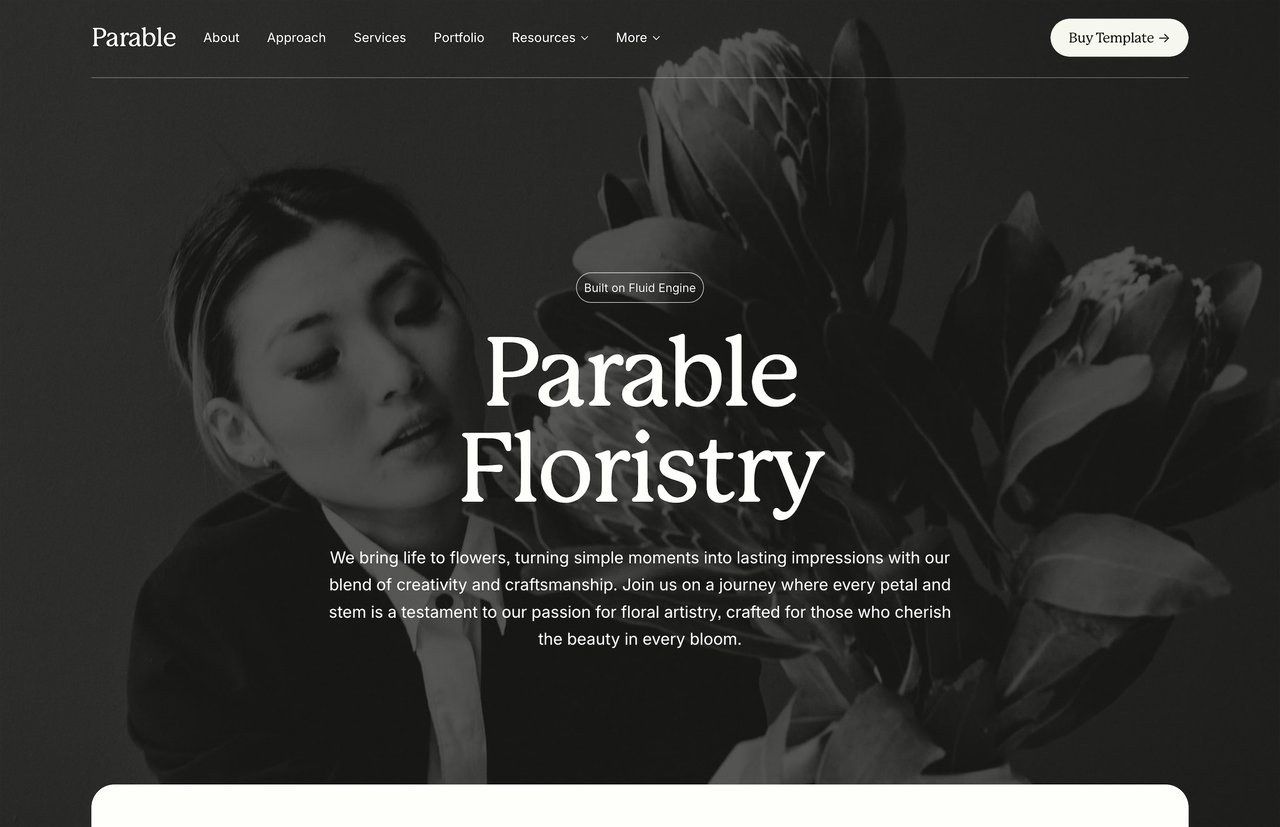
Quality Squarespace CSS customization bridges the gap between template constraints and unique design vision. Whether you're refining typography, creating custom animations, or solving specific layout challenges, CSS mastery transforms good Squarespace sites into exceptional ones. Templates like Parable already include thoughtful CSS customizations that demonstrate these principles in action, giving you a professional foundation to build upon.
FAQ
Can I use custom CSS on all Squarespace plans?
Yes, all paid Squarespace plans include CSS access, including the Personal plan. You'll find the CSS editor under Website → Website Tools → Custom CSS. Business and Commerce plans add JavaScript through Code Injection, but CSS works on every paid tier.
How do I target specific sections with CSS in Squarespace 7.1?
Right-click any section and select Inspect to find its data-section-id attribute. Target it in CSS using square brackets: [data-section-id="your-id-here"]. This method works for any section, giving you precise control over individual page areas.
What's the difference between CSS customization in Squarespace 7.0 vs 7.1?
Squarespace 7.0 uses a block-based structure with Index pages, while 7.1 uses sections with unique IDs. CSS targeting in 7.1 is more consistent since every section gets a data-section-id. Version 7.1 also simplified the CSS editor location and improved live preview functionality.
Why isn't my custom CSS working on my Squarespace site?
Check for syntax errors first — one missing bracket breaks everything below it. Next, verify your selector specificity matches or exceeds Squarespace's defaults. Clear your browser cache with Ctrl+Shift+R, and make sure you're editing the correct version if using page duplicates. Comment out recent additions to isolate the problem code.
Adding custom CSS to Squarespace transforms a good website into something unmistakably yours. While Squarespace's design tools handle the basics beautifully, CSS customization opens doors to precise styling control that sets your site apart from every other template user.
Smart CSS customization means understanding both what's possible and what's practical. After years of tweaking Squarespace sites for mission-driven brands, I've learned which CSS techniques deliver real impact without breaking your site's responsiveness or future updates.
Understanding Squarespace CSS Customization in 2026
Squarespace CSS customization lets you override default template styles with your own code. Think of it as a translation layer between your design vision and what Squarespace's style editor can achieve. You write CSS rules, Squarespace applies them on top of existing styles, and visitors see your customized design.
The platform has evolved significantly since 7.0. Version 7.1 brought structural changes that make CSS targeting more consistent but require different approaches than older tutorials suggest. Understanding these differences saves hours of frustration.
Most designers use CSS for typography refinements, spacing adjustments, hover effects, and hiding elements the style editor can't touch. Advanced users push further with animations, custom layouts, and responsive breakpoints. The key is knowing which customizations belong in CSS versus Squarespace's built-in tools.
Accessing the CSS Editor (Current Location for 2026)
Squarespace moved the CSS editor location in late 2025, catching many designers off guard. Here's where to find it now:
Navigate to Website → Pages
Click Website Tools at the bottom of the panel
Select Custom CSS
The editor opens in a sidebar with line numbers, syntax highlighting, and live preview. You can resize the panel by dragging its edge, helpful when working with longer code blocks.
Personal plans include CSS access, despite what outdated documentation might suggest. Business plans add JavaScript injection capabilities through Code Injection, but CSS works across all paid tiers.
Essential CSS Properties for Squarespace Customization
Certain CSS properties prove invaluable for Squarespace customization. Font styling remains the most common request, especially for brands using custom fonts beyond Squarespace's library.
Typography adjustments typically involve:
/* Refine heading styles */ h1 { font-size: clamp(2rem, 5vw, 3.5rem); line-height: 1.2; letter-spacing: -0.02em; } /* Improve paragraph readability */ p { font-size: 1.125rem; line-height: 1.7; max-width: 65ch; }
Color overrides fix those stubborn elements that ignore Squarespace's color themes. Newsletter blocks, form fields, and system pages often need direct targeting:
/* Fix newsletter block styling */ .newsletter-block input { background-color: #f5f5f5; border: 2px solid #333; color: #333; } /* Style form placeholders */ ::placeholder { color: #999; opacity: 1; }
Spacing control solves layout issues the padding controls miss. Negative margins, custom gaps, and precise positioning give you pixel-perfect control:
/* Tighten section spacing */ .page-section { padding-top: 3rem; padding-bottom: 3rem; } /* Create overlapping sections */ #specific-section { margin-top: -5rem; position: relative; z-index: 10; }
Targeting Specific Elements in Squarespace 7.1
Squarespace 7.1's section-based structure requires different targeting strategies than 7.0's block system. Every section gets a unique data-section-id attribute, making precise targeting straightforward once you know where to look.
Finding section IDs takes seconds with browser tools:
Right-click the section you want to style
Select "Inspect" or "Inspect Element"
Look for
data-section-id="abc123"in the HTMLTarget with
[data-section-id="abc123"]in your CSS
Block-level targeting works similarly. Each block type has consistent class names:
/* Target all image blocks */ .sqs-block-image { border-radius: 8px; overflow: hidden; } /* Target specific text block */ #block-yui_123456789 { background: rgba(255,255,255,0.9); padding: 2rem; }
Collection pages need special attention. Blog posts, events, and products use different class structures:
/* Style blog post titles */ .blog-item-title { font-weight: 600; margin-bottom: 0.5rem; } /* Customize product grid */ .products .grid-item { transition: transform 0.2s ease; } .products .grid-item:hover { transform: translateY(-4px); }
Mobile-First CSS Strategies
Mobile traffic dominates most Squarespace sites, yet many CSS tutorials ignore responsive design. Writing mobile-first CSS prevents desktop styles from breaking phone layouts.
Start with mobile styles as your base:
/* Mobile-first approach */ .custom-heading { font-size: 1.5rem; padding: 1rem; } /* Tablet and up */ @media (min-width: 768px) { .custom-heading { font-size: 2rem; padding: 2rem; } } /* Desktop */ @media (min-width: 1024px) { .custom-heading { font-size: 2.5rem; padding: 3rem; } }
Squarespace's built-in breakpoints occur at 768px and 1024px. Matching these in custom CSS maintains consistency with platform behavior.
Test every CSS addition on actual devices, not just browser resize. Touch interactions, viewport units, and font rendering differ between desktop simulation and real phones. The Squarespace mobile app's preview feature helps, but nothing beats loading your site on an actual phone.
Advanced CSS Techniques for Squarespace
Beyond basic styling, CSS enables sophisticated effects that make templates feel custom-built. CSS animations bring static pages to life without JavaScript dependencies.
Smooth scroll animations enhance user experience:
/* Fade in on scroll */ .fade-in-section { opacity: 0; transform: translateY(20px); transition: all 0.6s ease; } .fade-in-section.is-visible { opacity: 1; transform: translateY(0); }
Custom hover states differentiate interactive elements:
/* Button with sliding background */ .sqs-block-button-element { position: relative; overflow: hidden; z-index: 1; } .sqs-block-button-element::before { content: ''; position: absolute; top: 0; left: -100%; width: 100%; height: 100%; background: rgba(0,0,0,0.1); transition: left 0.3s ease; z-index: -1; } .sqs-block-button-element:hover::before { left: 0; }
CSS Grid unlocks layout possibilities Squarespace's columns can't achieve:
/* Custom grid layout */ .custom-grid { display: grid; grid-template-columns: repeat(auto-fit, minmax(300px, 1fr)); gap: 2rem; } /* Span specific items */ .custom-grid > :first-child { grid-column: 1 / -1; } .custom-grid > :nth-child(3) { grid-row: span 2; }
CSS Performance and Optimization
Every line of CSS impacts page load speed. Bloated stylesheets slow sites, frustrate visitors, and hurt search rankings. Strategic CSS organization keeps performance sharp.
Combine similar rules to reduce redundancy:
/* Instead of this */ h1 { color: #333; } h2 { color: #333; } h3 { color: #333; } /* Write this */ h1, h2, h3 { color: #333; }
Avoid overly specific selectors that create maintenance headaches:
/* Too specific */ body #page section[data-section-id="123"] .row .col .content h2 { margin-top: 2rem; } /* Better */ [data-section-id="123"] h2 { margin-top: 2rem; }
CSS custom properties (variables) simplify updates across your stylesheet:
:root { --brand-color: #2a4d69; --accent-color: #f39c12; --spacing-unit: 1.5rem; } .custom-section { background: var(--brand-color); padding: var(--spacing-unit); } .custom-button { background: var(--accent-color); margin-top: calc(var(--spacing-unit) * 2); }
Remove unused CSS before launch. Browser developer tools identify styles that never apply to any element. Cleaning these reduces file size and improves load time.
Troubleshooting Common CSS Issues
CSS that works perfectly in preview might fail on the live site. Understanding Squarespace's CSS cascade helps diagnose why styles don't apply as expected.
Specificity conflicts cause most CSS failures. Squarespace's default styles often use high specificity selectors. Adding !important works but creates future problems. Instead, match or exceed the original specificity:
/* If this doesn't work */ .header-title { color: blue; } /* Try increasing specificity */ body .header .header-title { color: blue; } /* Or target more precisely */ .header-title-text a { color: blue; }
Syntax errors break entire stylesheets. One missing bracket stops all CSS below that point from working. The CSS editor highlights obvious errors, but subtle mistakes slip through. Comment out recent additions to isolate problems.
Cache issues mask CSS updates. Browsers and Squarespace both cache stylesheets aggressively. Force refresh with Ctrl+Shift+R (Windows) or Cmd+Shift+R (Mac). For persistent issues, add a version query to test: ?v=2 after property values forces recalculation.
Template updates can override custom CSS. Premium templates from third-party shops handle updates differently than Squarespace templates. Document your customizations to quickly restore them if needed.
CSS Organization Best Practices
Professional CSS stays maintainable months after writing it. Clear organization prevents the "what does this do?" confusion that plagues rushed projects.
Comment your code generously:
/* ========================================================================== NAVIGATION CUSTOMIZATIONS ========================================================================== */ /* Hide navigation on specific page */ /* Client request: Remove nav from landing page only */ .collection-type-page.homepage .header { display: none; } /* Mobile navigation background fix */ /* Fixes issue where mobile menu had transparent background on scroll */ @media (max-width: 767px) { .header-menu-bg { background-color: rgba(255,255,255,0.98); } }
Group related styles logically. Typography together, layout modifications together, component styles together. Future you (or your client's next developer) will appreciate the structure.
Version control isn't just for developers. Copy your CSS to a text file before major changes. Squarespace doesn't offer CSS history, so manual backups save hours when experiments go wrong.
Platform Limitations and Workarounds
Squarespace CSS has boundaries. Certain system elements resist styling, protected to maintain platform stability. Knowing these limits prevents wasted effort.
Commerce elements have restricted styling options. Checkout pages, cart functionality, and payment forms use locked styles for security. You can adjust colors and fonts but can't restructure layouts or hide required fields.
Member areas follow similar restrictions. Login forms, account pages, and member navigation maintain consistent structure across all sites. CSS can refine appearance but not fundamental behavior.
Some Squarespace features override custom CSS by design. Image loading animations, mobile menu transitions, and form validation styles regenerate dynamically. Working with these systems rather than against them produces better results.
Resources for Squarespace CSS Code
Building a CSS snippet library accelerates future projects. Quality code sources save research time and inspire new techniques.
Squarespace's official forum contains years of CSS solutions. Search specific issues to find tested code from community experts. Cross-reference multiple solutions, as Squarespace updates can make older snippets obsolete.
Developer tools built into browsers remain the best learning resource. Inspect any Squarespace site to see how effects work. The computed styles panel shows exactly which CSS rules create each visual effect.
CSS documentation sites like MDN Web Docs explain properties in detail. When Squarespace-specific tutorials don't exist, understanding core CSS concepts helps you adapt general techniques to the platform.
Testing playgrounds like CodePen let you experiment without affecting live sites. Build complex CSS animations or layouts in isolation, then adapt working code for Squarespace's structure.
Making CSS Customization Sustainable
The best CSS customization enhances without overcomplicating. Each addition should serve a clear purpose tied to your site's goals.
Before writing custom CSS, exhaust Squarespace's built-in options. Color themes, spacing controls, and font pickers handle many needs without code. Reserve CSS for genuinely unique requirements.
Document every customization in a project file. Include what the CSS does, why you added it, and which pages it affects. This reference becomes invaluable during site updates or when clients request changes months later.
Consider maintenance from day one. Complex CSS that requires constant tweaking becomes a burden. Simple, purposeful customizations that enhance your template's strengths create lasting value.
Quality Squarespace CSS customization bridges the gap between template constraints and unique design vision. Whether you're refining typography, creating custom animations, or solving specific layout challenges, CSS mastery transforms good Squarespace sites into exceptional ones. Templates like Parable already include thoughtful CSS customizations that demonstrate these principles in action, giving you a professional foundation to build upon.
FAQ
Can I use custom CSS on all Squarespace plans?
Yes, all paid Squarespace plans include CSS access, including the Personal plan. You'll find the CSS editor under Website → Website Tools → Custom CSS. Business and Commerce plans add JavaScript through Code Injection, but CSS works on every paid tier.
How do I target specific sections with CSS in Squarespace 7.1?
Right-click any section and select Inspect to find its data-section-id attribute. Target it in CSS using square brackets: [data-section-id="your-id-here"]. This method works for any section, giving you precise control over individual page areas.
What's the difference between CSS customization in Squarespace 7.0 vs 7.1?
Squarespace 7.0 uses a block-based structure with Index pages, while 7.1 uses sections with unique IDs. CSS targeting in 7.1 is more consistent since every section gets a data-section-id. Version 7.1 also simplified the CSS editor location and improved live preview functionality.
Why isn't my custom CSS working on my Squarespace site?
Check for syntax errors first — one missing bracket breaks everything below it. Next, verify your selector specificity matches or exceeds Squarespace's defaults. Clear your browser cache with Ctrl+Shift+R, and make sure you're editing the correct version if using page duplicates. Comment out recent additions to isolate the problem code.
Adding custom CSS to Squarespace transforms a good website into something unmistakably yours. While Squarespace's design tools handle the basics beautifully, CSS customization opens doors to precise styling control that sets your site apart from every other template user.
Smart CSS customization means understanding both what's possible and what's practical. After years of tweaking Squarespace sites for mission-driven brands, I've learned which CSS techniques deliver real impact without breaking your site's responsiveness or future updates.
Understanding Squarespace CSS Customization in 2026
Squarespace CSS customization lets you override default template styles with your own code. Think of it as a translation layer between your design vision and what Squarespace's style editor can achieve. You write CSS rules, Squarespace applies them on top of existing styles, and visitors see your customized design.
The platform has evolved significantly since 7.0. Version 7.1 brought structural changes that make CSS targeting more consistent but require different approaches than older tutorials suggest. Understanding these differences saves hours of frustration.
Most designers use CSS for typography refinements, spacing adjustments, hover effects, and hiding elements the style editor can't touch. Advanced users push further with animations, custom layouts, and responsive breakpoints. The key is knowing which customizations belong in CSS versus Squarespace's built-in tools.
Accessing the CSS Editor (Current Location for 2026)
Squarespace moved the CSS editor location in late 2025, catching many designers off guard. Here's where to find it now:
Navigate to Website → Pages
Click Website Tools at the bottom of the panel
Select Custom CSS
The editor opens in a sidebar with line numbers, syntax highlighting, and live preview. You can resize the panel by dragging its edge, helpful when working with longer code blocks.
Personal plans include CSS access, despite what outdated documentation might suggest. Business plans add JavaScript injection capabilities through Code Injection, but CSS works across all paid tiers.
Essential CSS Properties for Squarespace Customization
Certain CSS properties prove invaluable for Squarespace customization. Font styling remains the most common request, especially for brands using custom fonts beyond Squarespace's library.
Typography adjustments typically involve:
/* Refine heading styles */ h1 { font-size: clamp(2rem, 5vw, 3.5rem); line-height: 1.2; letter-spacing: -0.02em; } /* Improve paragraph readability */ p { font-size: 1.125rem; line-height: 1.7; max-width: 65ch; }
Color overrides fix those stubborn elements that ignore Squarespace's color themes. Newsletter blocks, form fields, and system pages often need direct targeting:
/* Fix newsletter block styling */ .newsletter-block input { background-color: #f5f5f5; border: 2px solid #333; color: #333; } /* Style form placeholders */ ::placeholder { color: #999; opacity: 1; }
Spacing control solves layout issues the padding controls miss. Negative margins, custom gaps, and precise positioning give you pixel-perfect control:
/* Tighten section spacing */ .page-section { padding-top: 3rem; padding-bottom: 3rem; } /* Create overlapping sections */ #specific-section { margin-top: -5rem; position: relative; z-index: 10; }
Targeting Specific Elements in Squarespace 7.1
Squarespace 7.1's section-based structure requires different targeting strategies than 7.0's block system. Every section gets a unique data-section-id attribute, making precise targeting straightforward once you know where to look.
Finding section IDs takes seconds with browser tools:
Right-click the section you want to style
Select "Inspect" or "Inspect Element"
Look for
data-section-id="abc123"in the HTMLTarget with
[data-section-id="abc123"]in your CSS
Block-level targeting works similarly. Each block type has consistent class names:
/* Target all image blocks */ .sqs-block-image { border-radius: 8px; overflow: hidden; } /* Target specific text block */ #block-yui_123456789 { background: rgba(255,255,255,0.9); padding: 2rem; }
Collection pages need special attention. Blog posts, events, and products use different class structures:
/* Style blog post titles */ .blog-item-title { font-weight: 600; margin-bottom: 0.5rem; } /* Customize product grid */ .products .grid-item { transition: transform 0.2s ease; } .products .grid-item:hover { transform: translateY(-4px); }
Mobile-First CSS Strategies
Mobile traffic dominates most Squarespace sites, yet many CSS tutorials ignore responsive design. Writing mobile-first CSS prevents desktop styles from breaking phone layouts.
Start with mobile styles as your base:
/* Mobile-first approach */ .custom-heading { font-size: 1.5rem; padding: 1rem; } /* Tablet and up */ @media (min-width: 768px) { .custom-heading { font-size: 2rem; padding: 2rem; } } /* Desktop */ @media (min-width: 1024px) { .custom-heading { font-size: 2.5rem; padding: 3rem; } }
Squarespace's built-in breakpoints occur at 768px and 1024px. Matching these in custom CSS maintains consistency with platform behavior.
Test every CSS addition on actual devices, not just browser resize. Touch interactions, viewport units, and font rendering differ between desktop simulation and real phones. The Squarespace mobile app's preview feature helps, but nothing beats loading your site on an actual phone.
Advanced CSS Techniques for Squarespace
Beyond basic styling, CSS enables sophisticated effects that make templates feel custom-built. CSS animations bring static pages to life without JavaScript dependencies.
Smooth scroll animations enhance user experience:
/* Fade in on scroll */ .fade-in-section { opacity: 0; transform: translateY(20px); transition: all 0.6s ease; } .fade-in-section.is-visible { opacity: 1; transform: translateY(0); }
Custom hover states differentiate interactive elements:
/* Button with sliding background */ .sqs-block-button-element { position: relative; overflow: hidden; z-index: 1; } .sqs-block-button-element::before { content: ''; position: absolute; top: 0; left: -100%; width: 100%; height: 100%; background: rgba(0,0,0,0.1); transition: left 0.3s ease; z-index: -1; } .sqs-block-button-element:hover::before { left: 0; }
CSS Grid unlocks layout possibilities Squarespace's columns can't achieve:
/* Custom grid layout */ .custom-grid { display: grid; grid-template-columns: repeat(auto-fit, minmax(300px, 1fr)); gap: 2rem; } /* Span specific items */ .custom-grid > :first-child { grid-column: 1 / -1; } .custom-grid > :nth-child(3) { grid-row: span 2; }
CSS Performance and Optimization
Every line of CSS impacts page load speed. Bloated stylesheets slow sites, frustrate visitors, and hurt search rankings. Strategic CSS organization keeps performance sharp.
Combine similar rules to reduce redundancy:
/* Instead of this */ h1 { color: #333; } h2 { color: #333; } h3 { color: #333; } /* Write this */ h1, h2, h3 { color: #333; }
Avoid overly specific selectors that create maintenance headaches:
/* Too specific */ body #page section[data-section-id="123"] .row .col .content h2 { margin-top: 2rem; } /* Better */ [data-section-id="123"] h2 { margin-top: 2rem; }
CSS custom properties (variables) simplify updates across your stylesheet:
:root { --brand-color: #2a4d69; --accent-color: #f39c12; --spacing-unit: 1.5rem; } .custom-section { background: var(--brand-color); padding: var(--spacing-unit); } .custom-button { background: var(--accent-color); margin-top: calc(var(--spacing-unit) * 2); }
Remove unused CSS before launch. Browser developer tools identify styles that never apply to any element. Cleaning these reduces file size and improves load time.
Troubleshooting Common CSS Issues
CSS that works perfectly in preview might fail on the live site. Understanding Squarespace's CSS cascade helps diagnose why styles don't apply as expected.
Specificity conflicts cause most CSS failures. Squarespace's default styles often use high specificity selectors. Adding !important works but creates future problems. Instead, match or exceed the original specificity:
/* If this doesn't work */ .header-title { color: blue; } /* Try increasing specificity */ body .header .header-title { color: blue; } /* Or target more precisely */ .header-title-text a { color: blue; }
Syntax errors break entire stylesheets. One missing bracket stops all CSS below that point from working. The CSS editor highlights obvious errors, but subtle mistakes slip through. Comment out recent additions to isolate problems.
Cache issues mask CSS updates. Browsers and Squarespace both cache stylesheets aggressively. Force refresh with Ctrl+Shift+R (Windows) or Cmd+Shift+R (Mac). For persistent issues, add a version query to test: ?v=2 after property values forces recalculation.
Template updates can override custom CSS. Premium templates from third-party shops handle updates differently than Squarespace templates. Document your customizations to quickly restore them if needed.
CSS Organization Best Practices
Professional CSS stays maintainable months after writing it. Clear organization prevents the "what does this do?" confusion that plagues rushed projects.
Comment your code generously:
/* ========================================================================== NAVIGATION CUSTOMIZATIONS ========================================================================== */ /* Hide navigation on specific page */ /* Client request: Remove nav from landing page only */ .collection-type-page.homepage .header { display: none; } /* Mobile navigation background fix */ /* Fixes issue where mobile menu had transparent background on scroll */ @media (max-width: 767px) { .header-menu-bg { background-color: rgba(255,255,255,0.98); } }
Group related styles logically. Typography together, layout modifications together, component styles together. Future you (or your client's next developer) will appreciate the structure.
Version control isn't just for developers. Copy your CSS to a text file before major changes. Squarespace doesn't offer CSS history, so manual backups save hours when experiments go wrong.
Platform Limitations and Workarounds
Squarespace CSS has boundaries. Certain system elements resist styling, protected to maintain platform stability. Knowing these limits prevents wasted effort.
Commerce elements have restricted styling options. Checkout pages, cart functionality, and payment forms use locked styles for security. You can adjust colors and fonts but can't restructure layouts or hide required fields.
Member areas follow similar restrictions. Login forms, account pages, and member navigation maintain consistent structure across all sites. CSS can refine appearance but not fundamental behavior.
Some Squarespace features override custom CSS by design. Image loading animations, mobile menu transitions, and form validation styles regenerate dynamically. Working with these systems rather than against them produces better results.
Resources for Squarespace CSS Code
Building a CSS snippet library accelerates future projects. Quality code sources save research time and inspire new techniques.
Squarespace's official forum contains years of CSS solutions. Search specific issues to find tested code from community experts. Cross-reference multiple solutions, as Squarespace updates can make older snippets obsolete.
Developer tools built into browsers remain the best learning resource. Inspect any Squarespace site to see how effects work. The computed styles panel shows exactly which CSS rules create each visual effect.
CSS documentation sites like MDN Web Docs explain properties in detail. When Squarespace-specific tutorials don't exist, understanding core CSS concepts helps you adapt general techniques to the platform.
Testing playgrounds like CodePen let you experiment without affecting live sites. Build complex CSS animations or layouts in isolation, then adapt working code for Squarespace's structure.
Making CSS Customization Sustainable
The best CSS customization enhances without overcomplicating. Each addition should serve a clear purpose tied to your site's goals.
Before writing custom CSS, exhaust Squarespace's built-in options. Color themes, spacing controls, and font pickers handle many needs without code. Reserve CSS for genuinely unique requirements.
Document every customization in a project file. Include what the CSS does, why you added it, and which pages it affects. This reference becomes invaluable during site updates or when clients request changes months later.
Consider maintenance from day one. Complex CSS that requires constant tweaking becomes a burden. Simple, purposeful customizations that enhance your template's strengths create lasting value.
Quality Squarespace CSS customization bridges the gap between template constraints and unique design vision. Whether you're refining typography, creating custom animations, or solving specific layout challenges, CSS mastery transforms good Squarespace sites into exceptional ones. Templates like Parable already include thoughtful CSS customizations that demonstrate these principles in action, giving you a professional foundation to build upon.
FAQ
Can I use custom CSS on all Squarespace plans?
Yes, all paid Squarespace plans include CSS access, including the Personal plan. You'll find the CSS editor under Website → Website Tools → Custom CSS. Business and Commerce plans add JavaScript through Code Injection, but CSS works on every paid tier.
How do I target specific sections with CSS in Squarespace 7.1?
Right-click any section and select Inspect to find its data-section-id attribute. Target it in CSS using square brackets: [data-section-id="your-id-here"]. This method works for any section, giving you precise control over individual page areas.
What's the difference between CSS customization in Squarespace 7.0 vs 7.1?
Squarespace 7.0 uses a block-based structure with Index pages, while 7.1 uses sections with unique IDs. CSS targeting in 7.1 is more consistent since every section gets a data-section-id. Version 7.1 also simplified the CSS editor location and improved live preview functionality.
Why isn't my custom CSS working on my Squarespace site?
Check for syntax errors first — one missing bracket breaks everything below it. Next, verify your selector specificity matches or exceeds Squarespace's defaults. Clear your browser cache with Ctrl+Shift+R, and make sure you're editing the correct version if using page duplicates. Comment out recent additions to isolate the problem code.
