The default form is fine. You can do better.
Squarespace includes a built-in form block that works out of the box. Add it to any page, connect it to your email, and you're collecting submissions. For a basic contact page, that's enough.
But "enough" leaves a lot on the table. The default form doesn't guide the visitor, doesn't set expectations, and doesn't help you respond efficiently. With a few intentional choices, you can turn a generic form into something that saves you time and gets more people to hit submit.
Setting up a form in Squarespace
If you haven't added a form yet, the process is straightforward:
Edit the page where you want the form
Click an insert point and select the Form block
Click the pencil icon on the form to open the editor
Add, remove, or rearrange fields
Under Storage, choose where submissions go (email, Google Drive, Mailchimp, or Zapier)
Under Post-Submit, customize the confirmation message or redirect URL
Squarespace supports text fields, email fields, phone fields, dropdown menus, checkboxes, radio buttons, and text areas. That's enough to build a smart, tailored form without any plugins or third-party tools.
Keep it short
Every field you add is a small tax on the person filling it out. The more fields, the more people abandon the form before submitting. This is well-documented in conversion research and it holds true whether you're a therapist, a nonprofit, or a law firm.
A good rule: only ask for information you genuinely need to send a useful first reply. Everything else can come later in the conversation.
For most service businesses, that means:
Name
Email
One contextual field (more on this below)
A message box
Four fields. That's it. If you're asking for phone number, company name, budget range, preferred date, how they found you, and a detailed project description all on the first contact, you're filtering out people who would have been great clients but didn't feel like filling out an application.
Add one smart contextual field
This is the difference between a generic form and a useful one. Instead of just "Name, Email, Message," add one field that helps you understand what the person needs before you even open their message.
The right field depends on your business:
Therapists and wellness practitioners: A dropdown that asks "What brings you here?" with options like "Individual therapy," "Couples counseling," "Group programs," or "Not sure yet." This helps you route inquiries and respond with relevant information.
Nonprofits: A dropdown asking "How would you like to get involved?" with options like "Make a donation," "Volunteer," "Partner with us," or "General inquiry."
Churches: A dropdown with "I'm planning a visit," "I want to join a group," "I'd like to speak with a pastor," or "Other."
Creative agencies: A dropdown for project type: "Branding," "Web design," "Content," or "Something else."
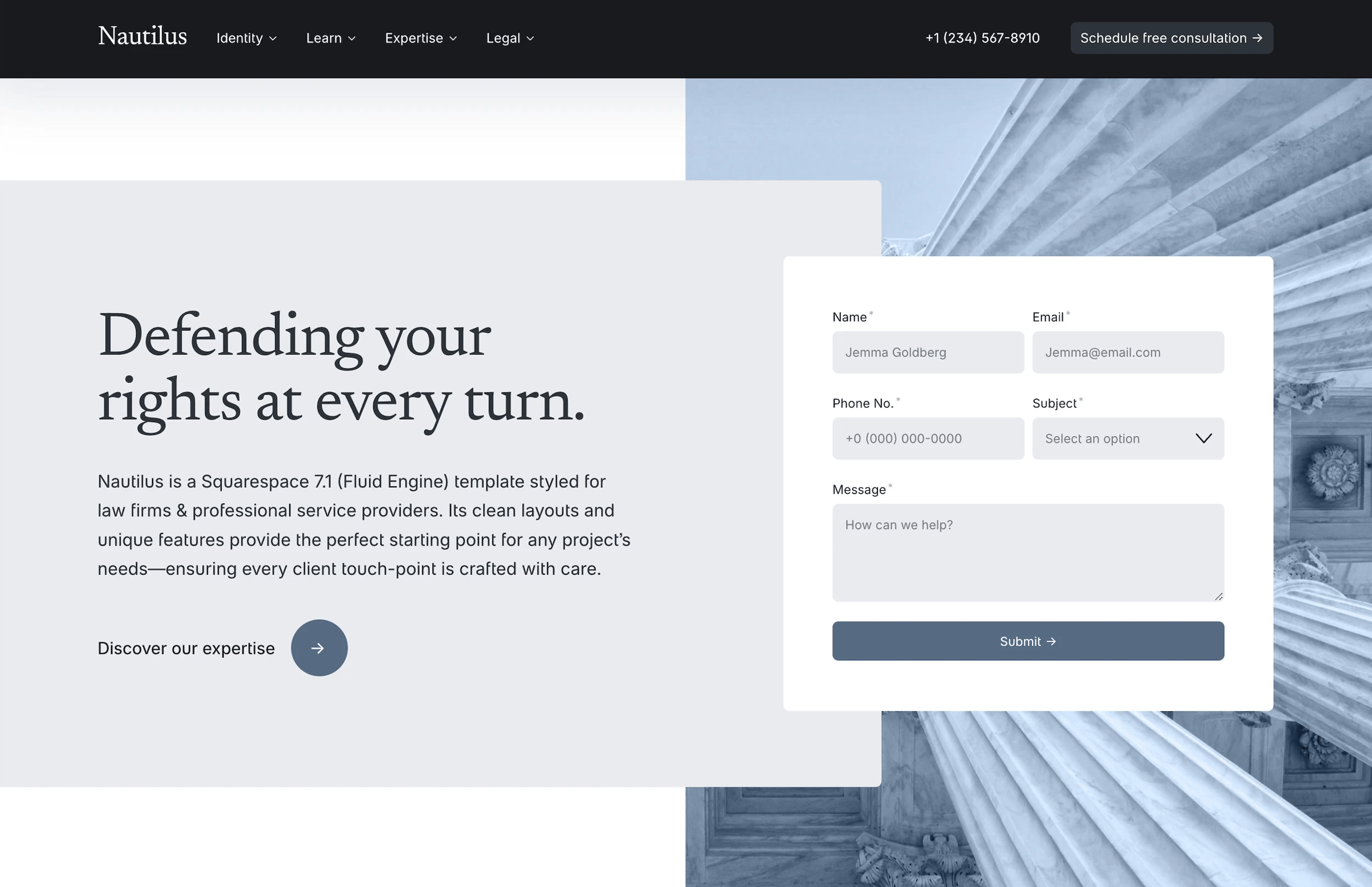
Law firms: "What type of legal matter?" with your practice areas listed.
This single field does two things. It gives the visitor a sense that you're organized and prepared to help them specifically. And it gives you the context to write a better first response instead of starting every reply with "Thanks for reaching out! Can you tell me more about what you're looking for?"
Write a real confirmation message
The default post-submit message in Squarespace is something like "Thanks! Your form has been submitted." That's functional but forgettable.
Replace it with something that sets expectations and reinforces trust:
"Thanks for reaching out. I typically respond within one business day. In the meantime, feel free to explore [relevant page] to learn more about how this works."
Or redirect them to a dedicated thank-you page where you can include next steps, link to an FAQ, or suggest a resource. A thank-you page also lets you track form completions as a conversion event in Google Analytics, which is useful if you're measuring how well your site performs.