Article summary
Prepare your content before you touch Squarespace. Build 5–10 focused pages, not 15 thin ones. Structure your homepage around a clear headline, social proof, and a call to action. List your services with real descriptions and pricing. Keep your design simple: two fonts, one accent color, real photos. Set SEO titles and meta descriptions on every page. Launch when it's functional, not when it's perfect.
What You Need Before You Start Building
Before you open Squarespace, you need three things figured out: what your business does, who it serves, and what you want visitors to do on your site.
That might sound obvious. But most small business websites fail because the owner jumped straight into design without answering those questions first. The result is a site that looks fine but doesn't communicate anything specific.
Get Clear on Your Offering
Write a single sentence that describes what your business does and who it helps. Not a tagline. Not a mission statement. Just a plain, direct sentence that a stranger could read and immediately understand.
Examples:
"I'm a bookkeeper who helps freelancers and small creative agencies manage their finances."
"I run a residential landscaping company in Austin that specializes in native plants and drought-tolerant design."
If you can't write that sentence, you're not ready to build a website. You're ready to clarify your business.
Gather Your Content
You'll need the following before you start:
A clear description of your services or products
5–10 high-quality photos (of your work, your team, or your space)
A short bio or "about" section
Contact information and your preferred method of inquiry
Testimonials or reviews, if you have them
Your logo and brand colors, if they exist
You don't need all of this to be perfect. But having it ready will keep you from stalling mid-build.
Choose a Squarespace Plan
Squarespace offers several tiers. For most small businesses, the Business plan is the right starting point. It gives you access to custom code injection, advanced analytics, and promotional pop-ups. If you're selling physical or digital products, you'll want the Basic Commerce plan for transaction features without the 3% fee.
Don't overthink this. You can always upgrade later.
Pages Every Small Business Website Needs
One of the most common questions I hear is "how many pages should my site have?" The answer depends on your business, but most small businesses need between 5 and 10 pages. The goal is to give visitors enough information to make a decision without overwhelming them. If you want to go deeper on this topic, I wrote a dedicated article on how many pages your Squarespace website should have.
Here's the core set:
Homepage
Your homepage is the front door. It needs to do three things within the first few seconds:
Tell visitors what you do
Show them you're credible
Give them a clear next step
That means a strong headline, a brief value statement, and a prominent call-to-action button. Don't bury the important stuff below three image carousels and a mission statement. Put the essential information above the fold, then use the rest of the page to support it with testimonials, service highlights, and a secondary CTA.
About Page
This is consistently one of the most-visited pages on any small business site. People want to know who they're working with.
Write your about page in second person where possible. Start with the visitor's problem or goal, then transition into who you are and why you're qualified to help. Include a photo of yourself or your team. Skip the timeline of your career unless it's directly relevant to your credibility.
Services Page
List your services with enough detail that someone can self-qualify. Each service should include a brief description, who it's for, and what the outcome looks like. If you offer tiered pricing, consider a simple comparison table.
Don't make visitors click through four pages to understand what you charge. Transparency builds trust faster than mystery.
Contact Page
Keep your contact page simple: a form, your email address (or phone number if appropriate), and your location if you serve a local area. Squarespace's built-in form blocks work well for this. Customize the fields to collect the information you actually need. If you want to go further with form design, there's a detailed guide on creating contact forms that convert.
Avoid adding too many fields. Name, email, and a message box are usually enough. Every extra field reduces the likelihood someone fills it out.
Blog or News Page
A blog isn't mandatory, but it's one of the best tools for long-term organic traffic. Even publishing one post per month on a topic your customers search for can build meaningful visibility over time. If you're going to blog, commit to a sustainable pace. One good post a month is better than a burst of five posts followed by six months of silence.
The complete guide to Squarespace SEO covers how to structure blog content for search visibility.
Setting Up Your Squarespace Site
Pick a Template (or Start from Scratch)
Squarespace 7.1 uses the Fluid Engine, which means every template is fully customizable. You're not locked into a layout. That said, starting with a template that's close to what you need will save you hours of work.
When evaluating templates, look for:
Feature | Why It Matters |
|---|---|
Page count | More pages = more structure out of the box |
Navigation style | Does the nav feel clean and intuitive? |
Typography | Are the default fonts readable and professional? |
Mobile layout | Does it look good on a phone without heavy tweaking? |
Content blocks | Does it use sections and layouts you'll actually need? |
Free Squarespace templates give you a starting point, but they're intentionally generic. They work for everyone, which means they're optimized for no one. If you've read the breakdown of premium vs. free Squarespace templates, you know the difference often comes down to structure, page count, and how much time you spend customizing.
Configure Your Site Settings
Before adding content, handle the foundational settings:
Site title and tagline. Your site title appears in browser tabs and search results. Make it your business name plus a short descriptor. "Cedar & Co. | Brand Strategy for Small Businesses" is more useful than just "Cedar & Co."
Favicon. Upload a small square version of your logo. It's a small detail that makes your site look polished.
Social sharing image. Set a default image that appears when someone shares a link to your site on social media. Squarespace lets you set this under Marketing > Social Sharing. Use a clean, branded image at 1200×630 pixels.
Custom domain. Connect a custom domain as early as possible. Squarespace walks you through this in the Domains panel. If you don't have a domain yet, purchase one through a registrar like Namecheap or Cloudflare, then connect it to your Squarespace site.
Design Decisions That Matter
A few design choices will shape how professional your site feels:
Fonts. Stick to two typefaces max. One for headings, one for body text. Squarespace includes a solid library of Google Fonts and Adobe Fonts. Prioritize readability over personality. If you want to go beyond the defaults, here's a guide on using custom fonts on Squarespace.
Colors. Use your brand colors if you have them. If you don't, start with a neutral palette: a dark color for text, a light background, and one accent color for buttons and links. Squarespace's color theme system makes this easier to manage across your whole site.
Spacing. Give your content room to breathe. Squarespace's section padding controls let you adjust vertical spacing between blocks. More white space almost always makes a site feel more professional.
Images. Use real photos when possible. Stock photos are fine as placeholders, but nothing builds trust like seeing actual photos of your work, your team, or your space. Compress images before uploading to keep page load times fast.
Building Out Your Pages
Homepage Structure
A strong small business homepage follows a predictable flow:
Hero section — Headline, subheadline, and primary CTA button
Social proof — Testimonials, client logos, or press mentions
Services overview — Brief descriptions with links to full service pages
About teaser — A short intro with a link to your full about page
Secondary CTA — Contact form or booking link
You don't need to reinvent the format. Visitors expect this structure because it works. The creativity should go into your words and images, not into an unconventional layout that confuses people.
Services Page Structure
For each service, include:
A clear name — Don't get clever with service names. "Brand Strategy" is better than "The Clarity Catalyst."
A short description — 2–3 sentences explaining what the service includes and what outcome the client can expect.
Pricing or a range — If you can't list exact pricing, give a starting point. "Projects start at $2,500" is more helpful than "Contact for pricing."
A CTA — Link to your contact form or a scheduling tool.
If you offer more than four or five services, group them into categories. A single long list gets harder to scan.
About Page Structure
Lead with empathy for the visitor, then transition into your story:
Start with the problem your audience faces
Introduce yourself as someone who understands that problem
Share your relevant background (briefly)
Close with a personal detail or two that makes you human
Skip the corporate bio format. Small business about pages should feel personal because that's the whole advantage of being a small business.
SEO Fundamentals
Search engine optimization doesn't need to be complicated for a small business site. Focus on these basics:
Page titles and meta descriptions. Set these for every page. Squarespace makes it easy under the SEO tab in page settings. Write titles that include your primary keyword and your business name. Keep meta descriptions under 160 characters and make them compelling enough to click.
URL slugs. Clean up your URLs. /services is better than /services-page-1. Squarespace sometimes generates messy slugs by default.
Headings. Use H1 for your page title, H2 for section headings, and H3 for sub-sections. Don't skip levels. This matters for both accessibility and search rankings.
Alt text on images. Describe what's in the image. This helps search engines understand your content and makes your site accessible to screen readers.
Local SEO. If you serve a specific area, mention your city and region naturally throughout your site. Create a Google Business Profile and link it to your website.
For the full picture, the Squarespace SEO guide goes much deeper on each of these topics.
Integrations Worth Considering
Squarespace connects with a number of third-party tools that can extend your site's functionality:
Integration | Use Case |
|---|---|
Acuity Scheduling | Online appointment booking (built into Squarespace) |
Mailchimp / Kit | Email marketing and newsletter signups |
Google Analytics | Detailed traffic and behavior tracking |
Calendly | Alternative scheduling if you prefer it over Acuity |
Zapier | Connect Squarespace forms to CRMs, spreadsheets, etc. |
Square / Stripe | Payment processing for products or services |
Don't add integrations you don't need yet. Each one adds complexity. Start with a contact form and a scheduling tool if you take appointments. Add email marketing once you're ready to write consistently.
Common Mistakes to Avoid
Too many pages with too little content. Five pages with strong, focused content will always outperform fifteen pages with thin content. Quality over quantity.
No clear call to action. Every page should guide the visitor toward a next step. If someone reads your services page and there's no button to contact you, that's a missed opportunity.
Ignoring mobile. Over half your traffic will come from phones. Preview every page on mobile before you publish. Squarespace's responsive design handles most of this, but you'll still need to check spacing, font sizes, and image cropping.
Writing for yourself instead of your visitor. Your website exists to serve the people who land on it. Write copy that speaks to their needs, not your resume. Use "you" more than "I."
Skipping the basics. Set your SEO titles. Add your favicon. Connect your domain. Compress your images. These are small tasks that make a measurable difference in how professional your site looks and how well it performs.
Launching Your Site
Before you publish, run through this checklist:
Every page has a unique title and meta description
All links work (internal and external)
Contact form submits correctly and goes to the right email
Images load quickly and look sharp on mobile
Your domain is connected and SSL is enabled
You've set a 404 page
Google Search Console is connected
Social sharing images are set
Don't wait until your site is perfect. Launch when it's clear, functional, and representative of your business. You can refine it over time. The longer you wait, the longer you're invisible online.
A Template Built for This
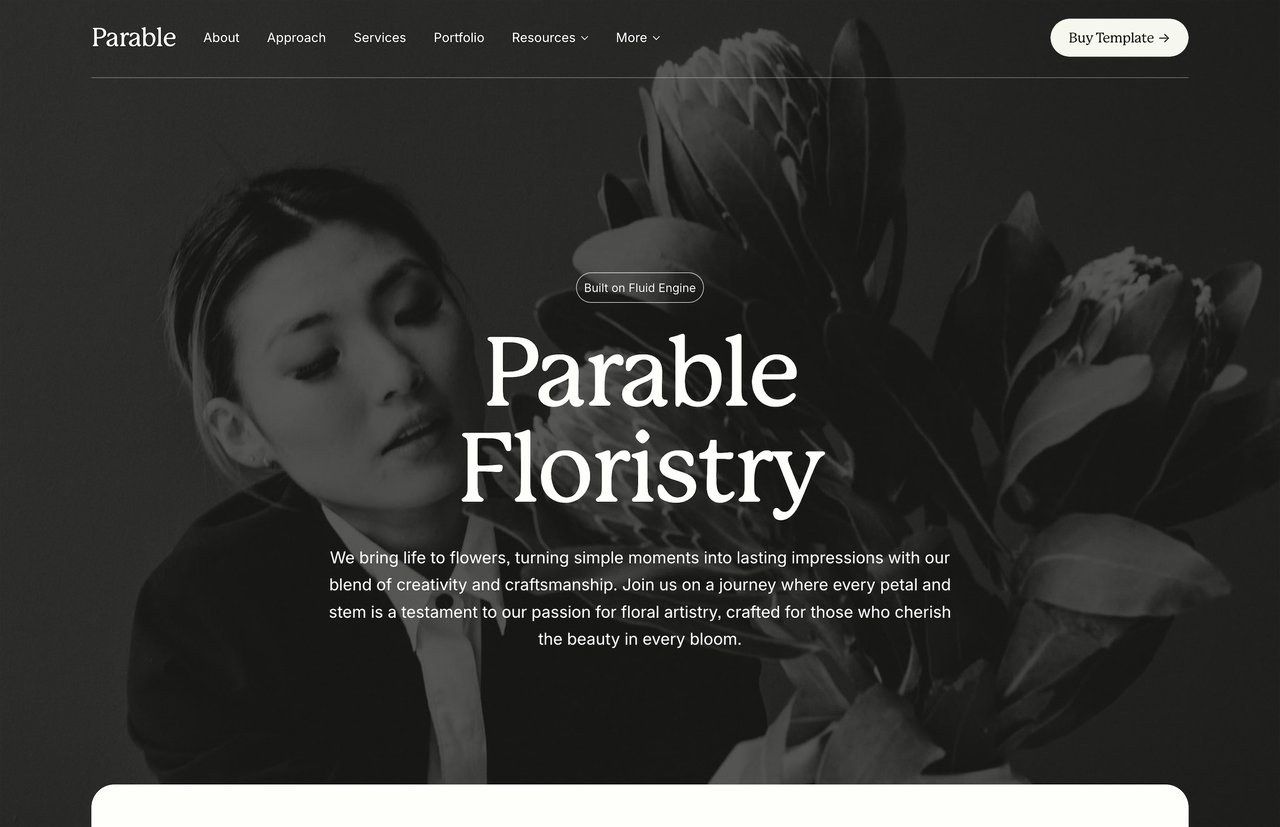
If you want a head start, the Parable template from Studio Mesa was designed specifically for small businesses. It includes 15 pages of intentional layout covering services, about, contact, blog, and more. The design is warm and minimal, built to let your content do the work without the site feeling cluttered or overstuffed.
Parable comes with an unlimited license, instant delivery, and lifetime email support. If you're a designer building sites for clients, you can use it across multiple projects.
Every Studio Mesa template is built on Squarespace 7.1 Fluid Engine, so you get the latest features and full customization flexibility. For a closer look at what's included in every purchase, read the breakdown of what comes with every Studio Mesa template.
If you're comparing options, the premium templates buyer's guide walks through what to look for and how to evaluate whether a premium template makes sense for your project.
Start Building
Your small business website doesn't need to be elaborate. It needs to be honest, organized, and easy to navigate. Start with the pages that matter most, write copy that speaks directly to your audience, and choose a design that gets out of the way. The best time to build your site was six months ago. The second best time is today.
Article summary
Prepare your content before you touch Squarespace. Build 5–10 focused pages, not 15 thin ones. Structure your homepage around a clear headline, social proof, and a call to action. List your services with real descriptions and pricing. Keep your design simple: two fonts, one accent color, real photos. Set SEO titles and meta descriptions on every page. Launch when it's functional, not when it's perfect.
What You Need Before You Start Building
Before you open Squarespace, you need three things figured out: what your business does, who it serves, and what you want visitors to do on your site.
That might sound obvious. But most small business websites fail because the owner jumped straight into design without answering those questions first. The result is a site that looks fine but doesn't communicate anything specific.
Get Clear on Your Offering
Write a single sentence that describes what your business does and who it helps. Not a tagline. Not a mission statement. Just a plain, direct sentence that a stranger could read and immediately understand.
Examples:
"I'm a bookkeeper who helps freelancers and small creative agencies manage their finances."
"I run a residential landscaping company in Austin that specializes in native plants and drought-tolerant design."
If you can't write that sentence, you're not ready to build a website. You're ready to clarify your business.
Gather Your Content
You'll need the following before you start:
A clear description of your services or products
5–10 high-quality photos (of your work, your team, or your space)
A short bio or "about" section
Contact information and your preferred method of inquiry
Testimonials or reviews, if you have them
Your logo and brand colors, if they exist
You don't need all of this to be perfect. But having it ready will keep you from stalling mid-build.
Choose a Squarespace Plan
Squarespace offers several tiers. For most small businesses, the Business plan is the right starting point. It gives you access to custom code injection, advanced analytics, and promotional pop-ups. If you're selling physical or digital products, you'll want the Basic Commerce plan for transaction features without the 3% fee.
Don't overthink this. You can always upgrade later.
Pages Every Small Business Website Needs
One of the most common questions I hear is "how many pages should my site have?" The answer depends on your business, but most small businesses need between 5 and 10 pages. The goal is to give visitors enough information to make a decision without overwhelming them. If you want to go deeper on this topic, I wrote a dedicated article on how many pages your Squarespace website should have.
Here's the core set:
Homepage
Your homepage is the front door. It needs to do three things within the first few seconds:
Tell visitors what you do
Show them you're credible
Give them a clear next step
That means a strong headline, a brief value statement, and a prominent call-to-action button. Don't bury the important stuff below three image carousels and a mission statement. Put the essential information above the fold, then use the rest of the page to support it with testimonials, service highlights, and a secondary CTA.
About Page
This is consistently one of the most-visited pages on any small business site. People want to know who they're working with.
Write your about page in second person where possible. Start with the visitor's problem or goal, then transition into who you are and why you're qualified to help. Include a photo of yourself or your team. Skip the timeline of your career unless it's directly relevant to your credibility.
Services Page
List your services with enough detail that someone can self-qualify. Each service should include a brief description, who it's for, and what the outcome looks like. If you offer tiered pricing, consider a simple comparison table.
Don't make visitors click through four pages to understand what you charge. Transparency builds trust faster than mystery.
Contact Page
Keep your contact page simple: a form, your email address (or phone number if appropriate), and your location if you serve a local area. Squarespace's built-in form blocks work well for this. Customize the fields to collect the information you actually need. If you want to go further with form design, there's a detailed guide on creating contact forms that convert.
Avoid adding too many fields. Name, email, and a message box are usually enough. Every extra field reduces the likelihood someone fills it out.
Blog or News Page
A blog isn't mandatory, but it's one of the best tools for long-term organic traffic. Even publishing one post per month on a topic your customers search for can build meaningful visibility over time. If you're going to blog, commit to a sustainable pace. One good post a month is better than a burst of five posts followed by six months of silence.
The complete guide to Squarespace SEO covers how to structure blog content for search visibility.
Setting Up Your Squarespace Site
Pick a Template (or Start from Scratch)
Squarespace 7.1 uses the Fluid Engine, which means every template is fully customizable. You're not locked into a layout. That said, starting with a template that's close to what you need will save you hours of work.
When evaluating templates, look for:
Feature | Why It Matters |
|---|---|
Page count | More pages = more structure out of the box |
Navigation style | Does the nav feel clean and intuitive? |
Typography | Are the default fonts readable and professional? |
Mobile layout | Does it look good on a phone without heavy tweaking? |
Content blocks | Does it use sections and layouts you'll actually need? |
Free Squarespace templates give you a starting point, but they're intentionally generic. They work for everyone, which means they're optimized for no one. If you've read the breakdown of premium vs. free Squarespace templates, you know the difference often comes down to structure, page count, and how much time you spend customizing.
Configure Your Site Settings
Before adding content, handle the foundational settings:
Site title and tagline. Your site title appears in browser tabs and search results. Make it your business name plus a short descriptor. "Cedar & Co. | Brand Strategy for Small Businesses" is more useful than just "Cedar & Co."
Favicon. Upload a small square version of your logo. It's a small detail that makes your site look polished.
Social sharing image. Set a default image that appears when someone shares a link to your site on social media. Squarespace lets you set this under Marketing > Social Sharing. Use a clean, branded image at 1200×630 pixels.
Custom domain. Connect a custom domain as early as possible. Squarespace walks you through this in the Domains panel. If you don't have a domain yet, purchase one through a registrar like Namecheap or Cloudflare, then connect it to your Squarespace site.
Design Decisions That Matter
A few design choices will shape how professional your site feels:
Fonts. Stick to two typefaces max. One for headings, one for body text. Squarespace includes a solid library of Google Fonts and Adobe Fonts. Prioritize readability over personality. If you want to go beyond the defaults, here's a guide on using custom fonts on Squarespace.
Colors. Use your brand colors if you have them. If you don't, start with a neutral palette: a dark color for text, a light background, and one accent color for buttons and links. Squarespace's color theme system makes this easier to manage across your whole site.
Spacing. Give your content room to breathe. Squarespace's section padding controls let you adjust vertical spacing between blocks. More white space almost always makes a site feel more professional.
Images. Use real photos when possible. Stock photos are fine as placeholders, but nothing builds trust like seeing actual photos of your work, your team, or your space. Compress images before uploading to keep page load times fast.
Building Out Your Pages
Homepage Structure
A strong small business homepage follows a predictable flow:
Hero section — Headline, subheadline, and primary CTA button
Social proof — Testimonials, client logos, or press mentions
Services overview — Brief descriptions with links to full service pages
About teaser — A short intro with a link to your full about page
Secondary CTA — Contact form or booking link
You don't need to reinvent the format. Visitors expect this structure because it works. The creativity should go into your words and images, not into an unconventional layout that confuses people.
Services Page Structure
For each service, include:
A clear name — Don't get clever with service names. "Brand Strategy" is better than "The Clarity Catalyst."
A short description — 2–3 sentences explaining what the service includes and what outcome the client can expect.
Pricing or a range — If you can't list exact pricing, give a starting point. "Projects start at $2,500" is more helpful than "Contact for pricing."
A CTA — Link to your contact form or a scheduling tool.
If you offer more than four or five services, group them into categories. A single long list gets harder to scan.
About Page Structure
Lead with empathy for the visitor, then transition into your story:
Start with the problem your audience faces
Introduce yourself as someone who understands that problem
Share your relevant background (briefly)
Close with a personal detail or two that makes you human
Skip the corporate bio format. Small business about pages should feel personal because that's the whole advantage of being a small business.
SEO Fundamentals
Search engine optimization doesn't need to be complicated for a small business site. Focus on these basics:
Page titles and meta descriptions. Set these for every page. Squarespace makes it easy under the SEO tab in page settings. Write titles that include your primary keyword and your business name. Keep meta descriptions under 160 characters and make them compelling enough to click.
URL slugs. Clean up your URLs. /services is better than /services-page-1. Squarespace sometimes generates messy slugs by default.
Headings. Use H1 for your page title, H2 for section headings, and H3 for sub-sections. Don't skip levels. This matters for both accessibility and search rankings.
Alt text on images. Describe what's in the image. This helps search engines understand your content and makes your site accessible to screen readers.
Local SEO. If you serve a specific area, mention your city and region naturally throughout your site. Create a Google Business Profile and link it to your website.
For the full picture, the Squarespace SEO guide goes much deeper on each of these topics.
Integrations Worth Considering
Squarespace connects with a number of third-party tools that can extend your site's functionality:
Integration | Use Case |
|---|---|
Acuity Scheduling | Online appointment booking (built into Squarespace) |
Mailchimp / Kit | Email marketing and newsletter signups |
Google Analytics | Detailed traffic and behavior tracking |
Calendly | Alternative scheduling if you prefer it over Acuity |
Zapier | Connect Squarespace forms to CRMs, spreadsheets, etc. |
Square / Stripe | Payment processing for products or services |
Don't add integrations you don't need yet. Each one adds complexity. Start with a contact form and a scheduling tool if you take appointments. Add email marketing once you're ready to write consistently.
Common Mistakes to Avoid
Too many pages with too little content. Five pages with strong, focused content will always outperform fifteen pages with thin content. Quality over quantity.
No clear call to action. Every page should guide the visitor toward a next step. If someone reads your services page and there's no button to contact you, that's a missed opportunity.
Ignoring mobile. Over half your traffic will come from phones. Preview every page on mobile before you publish. Squarespace's responsive design handles most of this, but you'll still need to check spacing, font sizes, and image cropping.
Writing for yourself instead of your visitor. Your website exists to serve the people who land on it. Write copy that speaks to their needs, not your resume. Use "you" more than "I."
Skipping the basics. Set your SEO titles. Add your favicon. Connect your domain. Compress your images. These are small tasks that make a measurable difference in how professional your site looks and how well it performs.
Launching Your Site
Before you publish, run through this checklist:
Every page has a unique title and meta description
All links work (internal and external)
Contact form submits correctly and goes to the right email
Images load quickly and look sharp on mobile
Your domain is connected and SSL is enabled
You've set a 404 page
Google Search Console is connected
Social sharing images are set
Don't wait until your site is perfect. Launch when it's clear, functional, and representative of your business. You can refine it over time. The longer you wait, the longer you're invisible online.
A Template Built for This
If you want a head start, the Parable template from Studio Mesa was designed specifically for small businesses. It includes 15 pages of intentional layout covering services, about, contact, blog, and more. The design is warm and minimal, built to let your content do the work without the site feeling cluttered or overstuffed.
Parable comes with an unlimited license, instant delivery, and lifetime email support. If you're a designer building sites for clients, you can use it across multiple projects.
Every Studio Mesa template is built on Squarespace 7.1 Fluid Engine, so you get the latest features and full customization flexibility. For a closer look at what's included in every purchase, read the breakdown of what comes with every Studio Mesa template.
If you're comparing options, the premium templates buyer's guide walks through what to look for and how to evaluate whether a premium template makes sense for your project.
Start Building
Your small business website doesn't need to be elaborate. It needs to be honest, organized, and easy to navigate. Start with the pages that matter most, write copy that speaks directly to your audience, and choose a design that gets out of the way. The best time to build your site was six months ago. The second best time is today.
Article summary
Prepare your content before you touch Squarespace. Build 5–10 focused pages, not 15 thin ones. Structure your homepage around a clear headline, social proof, and a call to action. List your services with real descriptions and pricing. Keep your design simple: two fonts, one accent color, real photos. Set SEO titles and meta descriptions on every page. Launch when it's functional, not when it's perfect.
What You Need Before You Start Building
Before you open Squarespace, you need three things figured out: what your business does, who it serves, and what you want visitors to do on your site.
That might sound obvious. But most small business websites fail because the owner jumped straight into design without answering those questions first. The result is a site that looks fine but doesn't communicate anything specific.
Get Clear on Your Offering
Write a single sentence that describes what your business does and who it helps. Not a tagline. Not a mission statement. Just a plain, direct sentence that a stranger could read and immediately understand.
Examples:
"I'm a bookkeeper who helps freelancers and small creative agencies manage their finances."
"I run a residential landscaping company in Austin that specializes in native plants and drought-tolerant design."
If you can't write that sentence, you're not ready to build a website. You're ready to clarify your business.
Gather Your Content
You'll need the following before you start:
A clear description of your services or products
5–10 high-quality photos (of your work, your team, or your space)
A short bio or "about" section
Contact information and your preferred method of inquiry
Testimonials or reviews, if you have them
Your logo and brand colors, if they exist
You don't need all of this to be perfect. But having it ready will keep you from stalling mid-build.
Choose a Squarespace Plan
Squarespace offers several tiers. For most small businesses, the Business plan is the right starting point. It gives you access to custom code injection, advanced analytics, and promotional pop-ups. If you're selling physical or digital products, you'll want the Basic Commerce plan for transaction features without the 3% fee.
Don't overthink this. You can always upgrade later.
Pages Every Small Business Website Needs
One of the most common questions I hear is "how many pages should my site have?" The answer depends on your business, but most small businesses need between 5 and 10 pages. The goal is to give visitors enough information to make a decision without overwhelming them. If you want to go deeper on this topic, I wrote a dedicated article on how many pages your Squarespace website should have.
Here's the core set:
Homepage
Your homepage is the front door. It needs to do three things within the first few seconds:
Tell visitors what you do
Show them you're credible
Give them a clear next step
That means a strong headline, a brief value statement, and a prominent call-to-action button. Don't bury the important stuff below three image carousels and a mission statement. Put the essential information above the fold, then use the rest of the page to support it with testimonials, service highlights, and a secondary CTA.
About Page
This is consistently one of the most-visited pages on any small business site. People want to know who they're working with.
Write your about page in second person where possible. Start with the visitor's problem or goal, then transition into who you are and why you're qualified to help. Include a photo of yourself or your team. Skip the timeline of your career unless it's directly relevant to your credibility.
Services Page
List your services with enough detail that someone can self-qualify. Each service should include a brief description, who it's for, and what the outcome looks like. If you offer tiered pricing, consider a simple comparison table.
Don't make visitors click through four pages to understand what you charge. Transparency builds trust faster than mystery.
Contact Page
Keep your contact page simple: a form, your email address (or phone number if appropriate), and your location if you serve a local area. Squarespace's built-in form blocks work well for this. Customize the fields to collect the information you actually need. If you want to go further with form design, there's a detailed guide on creating contact forms that convert.
Avoid adding too many fields. Name, email, and a message box are usually enough. Every extra field reduces the likelihood someone fills it out.
Blog or News Page
A blog isn't mandatory, but it's one of the best tools for long-term organic traffic. Even publishing one post per month on a topic your customers search for can build meaningful visibility over time. If you're going to blog, commit to a sustainable pace. One good post a month is better than a burst of five posts followed by six months of silence.
The complete guide to Squarespace SEO covers how to structure blog content for search visibility.
Setting Up Your Squarespace Site
Pick a Template (or Start from Scratch)
Squarespace 7.1 uses the Fluid Engine, which means every template is fully customizable. You're not locked into a layout. That said, starting with a template that's close to what you need will save you hours of work.
When evaluating templates, look for:
Feature | Why It Matters |
|---|---|
Page count | More pages = more structure out of the box |
Navigation style | Does the nav feel clean and intuitive? |
Typography | Are the default fonts readable and professional? |
Mobile layout | Does it look good on a phone without heavy tweaking? |
Content blocks | Does it use sections and layouts you'll actually need? |
Free Squarespace templates give you a starting point, but they're intentionally generic. They work for everyone, which means they're optimized for no one. If you've read the breakdown of premium vs. free Squarespace templates, you know the difference often comes down to structure, page count, and how much time you spend customizing.
Configure Your Site Settings
Before adding content, handle the foundational settings:
Site title and tagline. Your site title appears in browser tabs and search results. Make it your business name plus a short descriptor. "Cedar & Co. | Brand Strategy for Small Businesses" is more useful than just "Cedar & Co."
Favicon. Upload a small square version of your logo. It's a small detail that makes your site look polished.
Social sharing image. Set a default image that appears when someone shares a link to your site on social media. Squarespace lets you set this under Marketing > Social Sharing. Use a clean, branded image at 1200×630 pixels.
Custom domain. Connect a custom domain as early as possible. Squarespace walks you through this in the Domains panel. If you don't have a domain yet, purchase one through a registrar like Namecheap or Cloudflare, then connect it to your Squarespace site.
Design Decisions That Matter
A few design choices will shape how professional your site feels:
Fonts. Stick to two typefaces max. One for headings, one for body text. Squarespace includes a solid library of Google Fonts and Adobe Fonts. Prioritize readability over personality. If you want to go beyond the defaults, here's a guide on using custom fonts on Squarespace.
Colors. Use your brand colors if you have them. If you don't, start with a neutral palette: a dark color for text, a light background, and one accent color for buttons and links. Squarespace's color theme system makes this easier to manage across your whole site.
Spacing. Give your content room to breathe. Squarespace's section padding controls let you adjust vertical spacing between blocks. More white space almost always makes a site feel more professional.
Images. Use real photos when possible. Stock photos are fine as placeholders, but nothing builds trust like seeing actual photos of your work, your team, or your space. Compress images before uploading to keep page load times fast.
Building Out Your Pages
Homepage Structure
A strong small business homepage follows a predictable flow:
Hero section — Headline, subheadline, and primary CTA button
Social proof — Testimonials, client logos, or press mentions
Services overview — Brief descriptions with links to full service pages
About teaser — A short intro with a link to your full about page
Secondary CTA — Contact form or booking link
You don't need to reinvent the format. Visitors expect this structure because it works. The creativity should go into your words and images, not into an unconventional layout that confuses people.
Services Page Structure
For each service, include:
A clear name — Don't get clever with service names. "Brand Strategy" is better than "The Clarity Catalyst."
A short description — 2–3 sentences explaining what the service includes and what outcome the client can expect.
Pricing or a range — If you can't list exact pricing, give a starting point. "Projects start at $2,500" is more helpful than "Contact for pricing."
A CTA — Link to your contact form or a scheduling tool.
If you offer more than four or five services, group them into categories. A single long list gets harder to scan.
About Page Structure
Lead with empathy for the visitor, then transition into your story:
Start with the problem your audience faces
Introduce yourself as someone who understands that problem
Share your relevant background (briefly)
Close with a personal detail or two that makes you human
Skip the corporate bio format. Small business about pages should feel personal because that's the whole advantage of being a small business.
SEO Fundamentals
Search engine optimization doesn't need to be complicated for a small business site. Focus on these basics:
Page titles and meta descriptions. Set these for every page. Squarespace makes it easy under the SEO tab in page settings. Write titles that include your primary keyword and your business name. Keep meta descriptions under 160 characters and make them compelling enough to click.
URL slugs. Clean up your URLs. /services is better than /services-page-1. Squarespace sometimes generates messy slugs by default.
Headings. Use H1 for your page title, H2 for section headings, and H3 for sub-sections. Don't skip levels. This matters for both accessibility and search rankings.
Alt text on images. Describe what's in the image. This helps search engines understand your content and makes your site accessible to screen readers.
Local SEO. If you serve a specific area, mention your city and region naturally throughout your site. Create a Google Business Profile and link it to your website.
For the full picture, the Squarespace SEO guide goes much deeper on each of these topics.
Integrations Worth Considering
Squarespace connects with a number of third-party tools that can extend your site's functionality:
Integration | Use Case |
|---|---|
Acuity Scheduling | Online appointment booking (built into Squarespace) |
Mailchimp / Kit | Email marketing and newsletter signups |
Google Analytics | Detailed traffic and behavior tracking |
Calendly | Alternative scheduling if you prefer it over Acuity |
Zapier | Connect Squarespace forms to CRMs, spreadsheets, etc. |
Square / Stripe | Payment processing for products or services |
Don't add integrations you don't need yet. Each one adds complexity. Start with a contact form and a scheduling tool if you take appointments. Add email marketing once you're ready to write consistently.
Common Mistakes to Avoid
Too many pages with too little content. Five pages with strong, focused content will always outperform fifteen pages with thin content. Quality over quantity.
No clear call to action. Every page should guide the visitor toward a next step. If someone reads your services page and there's no button to contact you, that's a missed opportunity.
Ignoring mobile. Over half your traffic will come from phones. Preview every page on mobile before you publish. Squarespace's responsive design handles most of this, but you'll still need to check spacing, font sizes, and image cropping.
Writing for yourself instead of your visitor. Your website exists to serve the people who land on it. Write copy that speaks to their needs, not your resume. Use "you" more than "I."
Skipping the basics. Set your SEO titles. Add your favicon. Connect your domain. Compress your images. These are small tasks that make a measurable difference in how professional your site looks and how well it performs.
Launching Your Site
Before you publish, run through this checklist:
Every page has a unique title and meta description
All links work (internal and external)
Contact form submits correctly and goes to the right email
Images load quickly and look sharp on mobile
Your domain is connected and SSL is enabled
You've set a 404 page
Google Search Console is connected
Social sharing images are set
Don't wait until your site is perfect. Launch when it's clear, functional, and representative of your business. You can refine it over time. The longer you wait, the longer you're invisible online.
A Template Built for This
If you want a head start, the Parable template from Studio Mesa was designed specifically for small businesses. It includes 15 pages of intentional layout covering services, about, contact, blog, and more. The design is warm and minimal, built to let your content do the work without the site feeling cluttered or overstuffed.
Parable comes with an unlimited license, instant delivery, and lifetime email support. If you're a designer building sites for clients, you can use it across multiple projects.
Every Studio Mesa template is built on Squarespace 7.1 Fluid Engine, so you get the latest features and full customization flexibility. For a closer look at what's included in every purchase, read the breakdown of what comes with every Studio Mesa template.
If you're comparing options, the premium templates buyer's guide walks through what to look for and how to evaluate whether a premium template makes sense for your project.
Start Building
Your small business website doesn't need to be elaborate. It needs to be honest, organized, and easy to navigate. Start with the pages that matter most, write copy that speaks directly to your audience, and choose a design that gets out of the way. The best time to build your site was six months ago. The second best time is today.
