SM Folder
Add icons and a short description to your folder nav.
Templates this applies to
- Nautilus
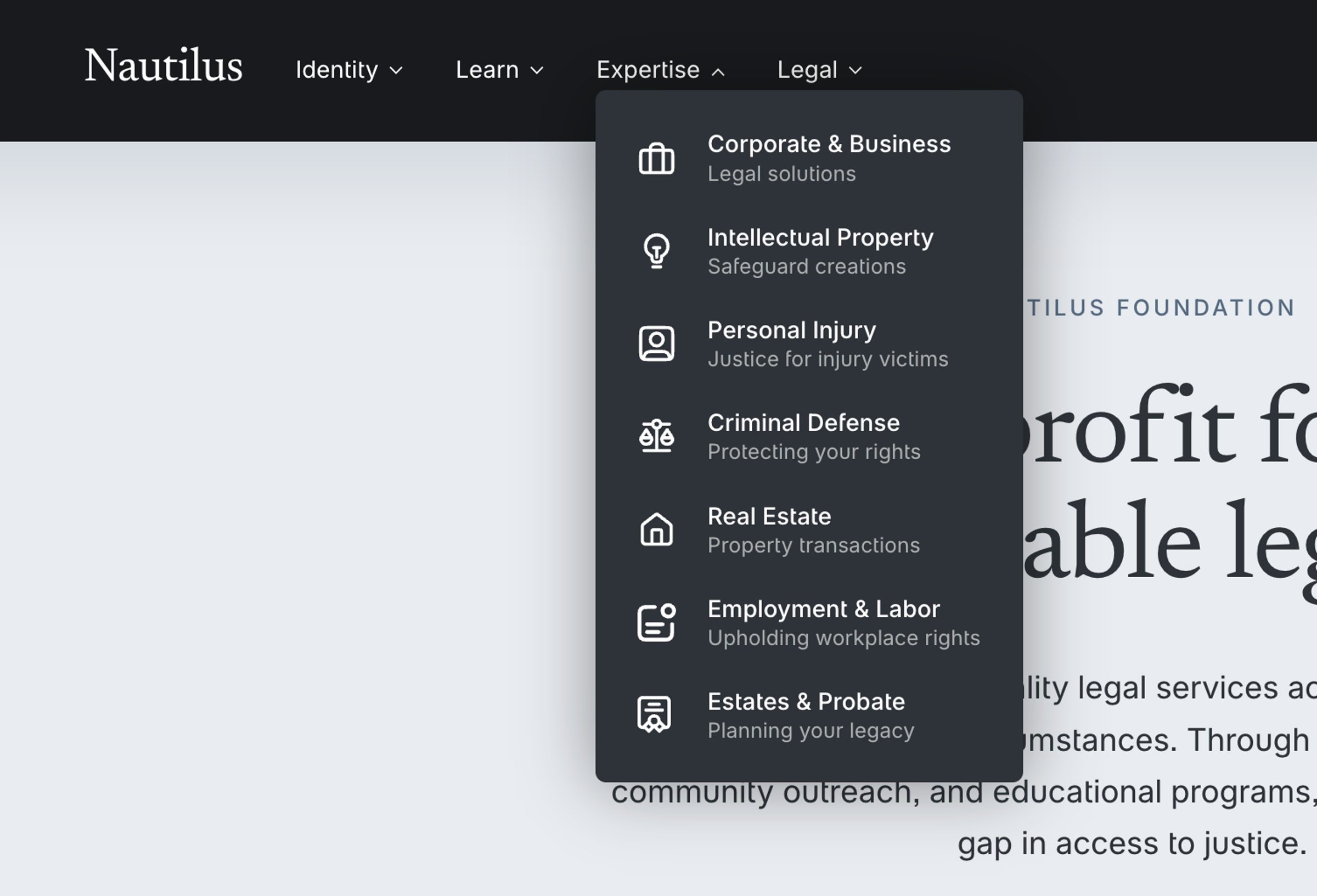
How it works
1 | Select the right folder
In the Custom CSS window, scroll down until you find the "SM Folder" section. You'll see a lot of CSS variables: The one you're looking for is @sm-folder-number:3;— this controls which folder is being customized with icons. If you only have one folder, change it to 1.
2 | Pick your icons
Icons are not included (except for the default template ones), so you'll need to make or download your own. I recommend thenounproject.com for easy, high-quality icons. Alternatively, Untitled UI is what's being used as the placeholder icons, which I'm a huge fan of.
Tip 1: Download your icons in the color you want them to appear — the encoder doesn't recolor.
Tip 2: Use SVG files (not PNG), as they'll appear much sharper and at a much smaller file size.
3 | Convert your icon
Drop your SVG into the SVG Icon Encoder and click Copy. This converts your icon into a self-contained format that works reliably across editor previews, password-protected sites, and live published sites — no Squarespace upload workaround needed.
4 | Reference in Custom CSS
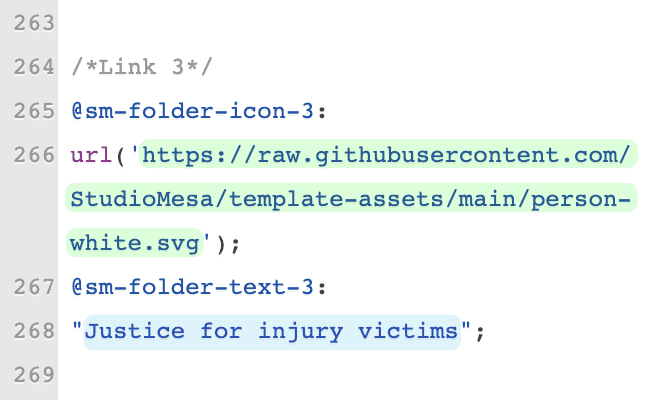
Now that you've copied the encoded value, navigate to the first link you want to change in the "SM Folder" area. Select the URL highlighted in green below — including the surrounding quotes — and paste in what you copied. It should override what's there; just make sure there's only one value present between the parentheses. After you do this, the icon will appear for the link in your folder.
5 | Add a Description
Lastly, update the description text underneath each link. Just select the text outlined in blue above (again, not the quotes!) and replace it with your own. This should update immediately. All that's left is to repeat for all links in your folder!