Two Column Forms
Two Column Forms
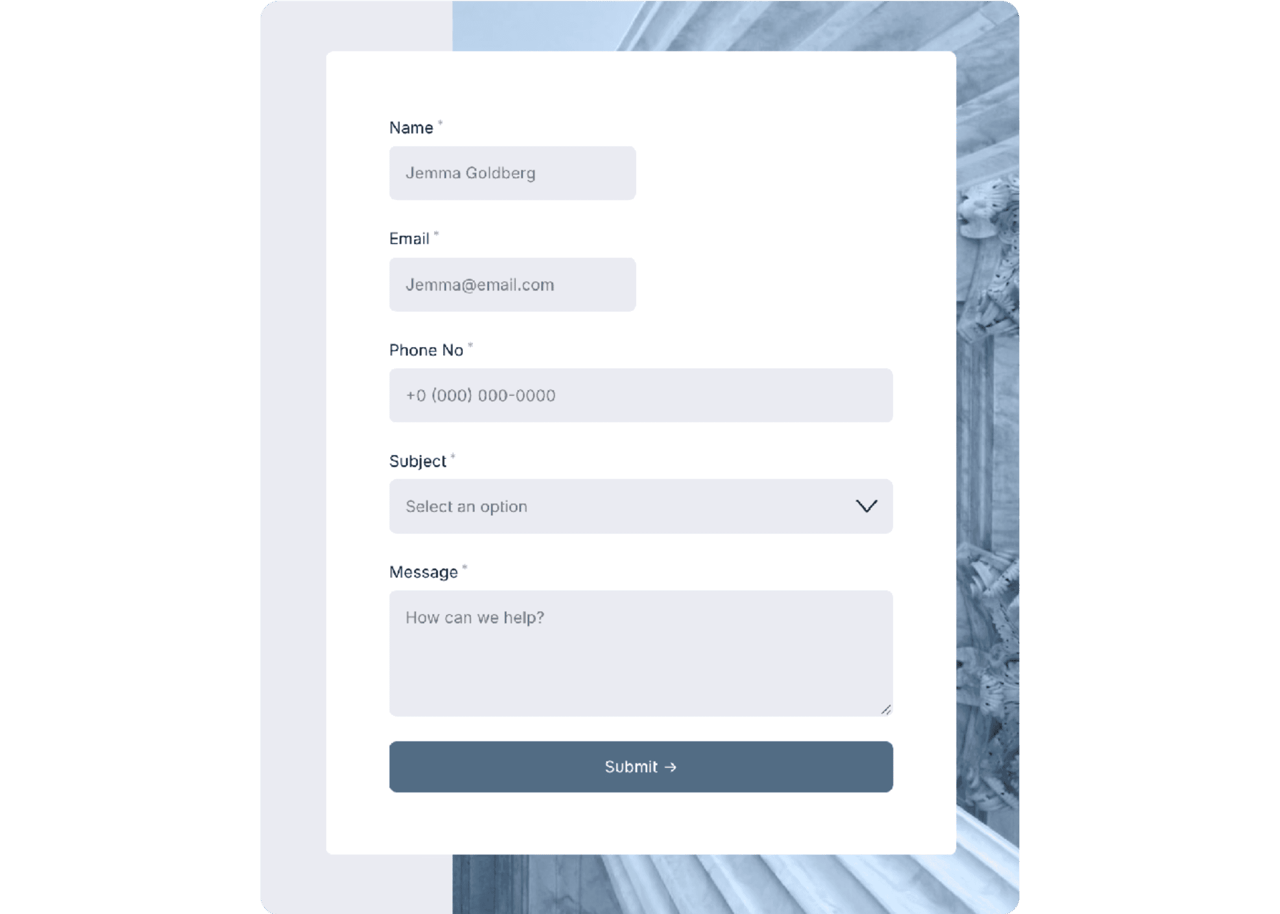
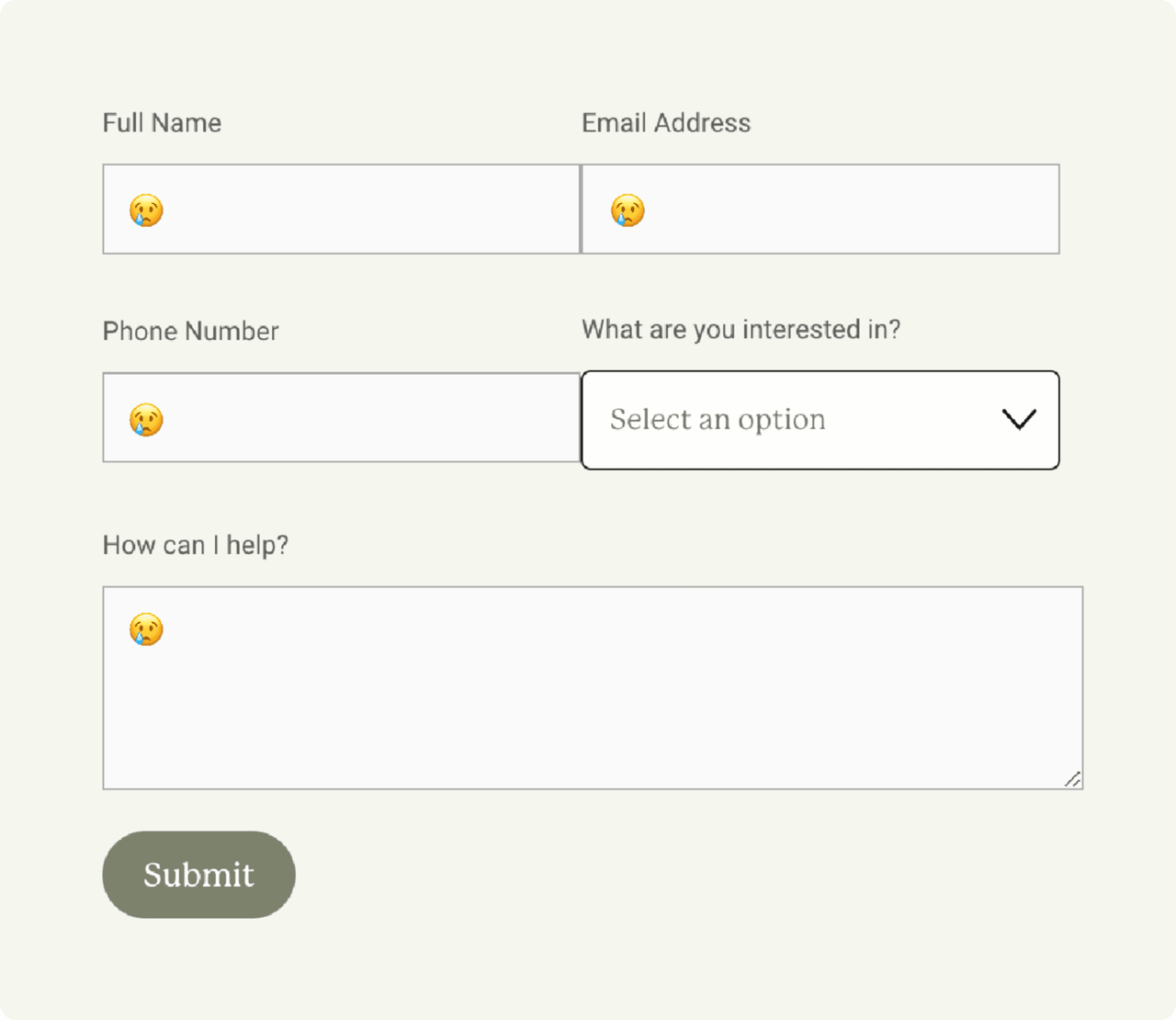
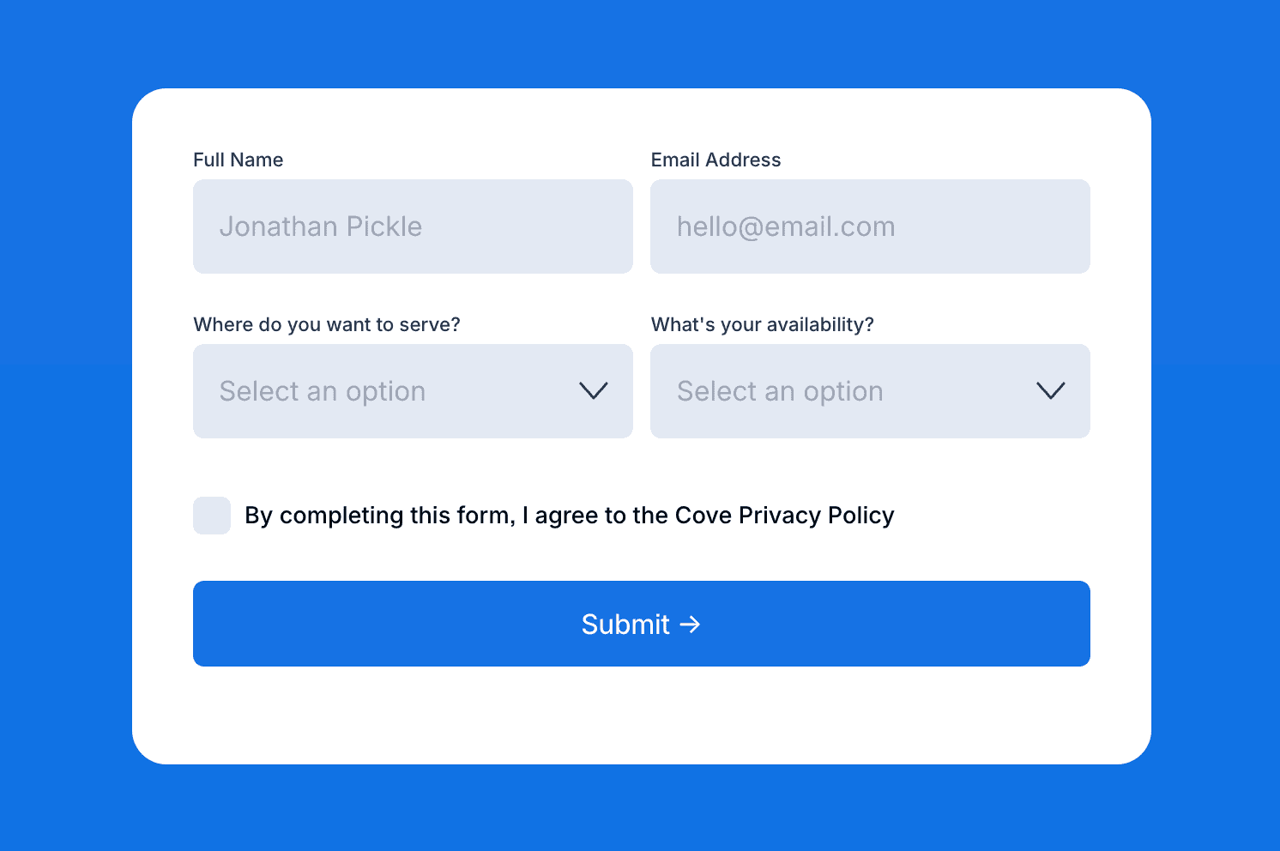
Customize form inputs to group two onto a single row.
Applies to
Cove
Cove
Handshake
Handshake
Kintsugi
Kintsugi
Learnable
Learnable
Nautilus
Nautilus
Opponent
Opponent
Parable
Parable
Retrograde
Retrograde

How it works
Some forms with lots of inputs can get very long, and make pages awkward to browse. So I've added some code to allow inputs to be formatted as two per row instead of one.
The part of the code .form-wrapper .react-form-contents .field-list .field:nth-child(1) is what selects each input. The number at the end corresponds to the input it's selecting—odd numbers are on the left, even on the right. If you leave the code as-is, make sure to arrange inputs accordingly, as certain fields (name, address, text area, etc) will cause problems if moved to the wrong spot. I generally suggest only using the default Text input field, as most of the others have strange formatting that cause issues.
If you want to remove all formatting, remove all of the code from that page's injection. If you'd like to add more inputs to the formatting code, just add another comma after the last item in the selector, paste .form-wrapper .react-form-contents .field-list .field:nth-child(1) and change the number.
Some forms with lots of inputs can get very long, and make pages awkward to browse. So I've added some code to allow inputs to be formatted as two per row instead of one.
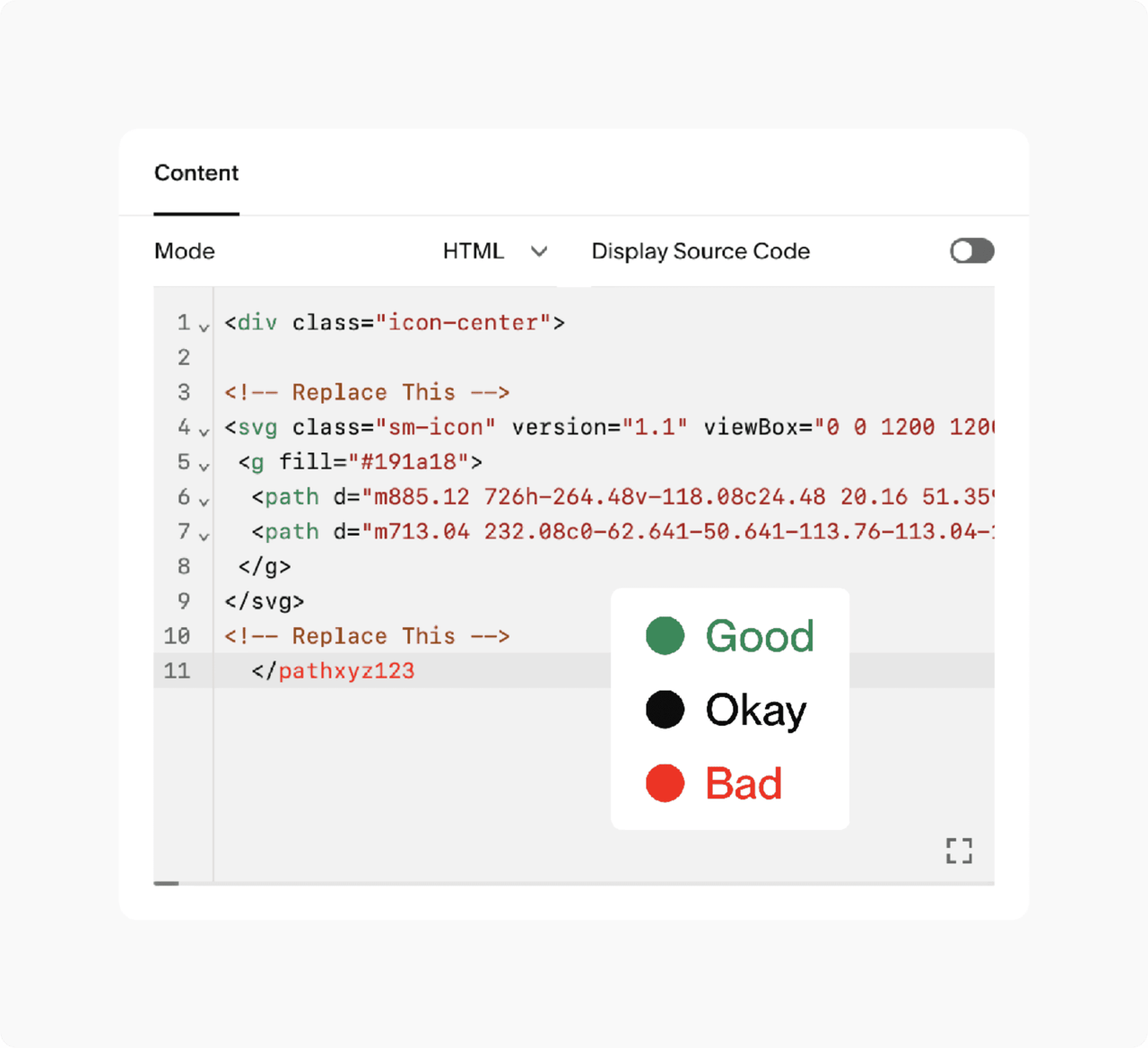
The part of the code .form-wrapper .react-form-contents .field-list .field:nth-child(1) is what selects each input. The number at the end corresponds to the input it's selecting—odd numbers are on the left, even on the right. If you leave the code as-is, make sure to arrange inputs accordingly, as certain fields (name, address, text area, etc) will cause problems if moved to the wrong spot. I generally suggest only using the default Text input field, as most of the others have strange formatting that cause issues.
If you want to remove all formatting, remove all of the code from that page's injection. If you'd like to add more inputs to the formatting code, just add another comma after the last item in the selector, paste .form-wrapper .react-form-contents .field-list .field:nth-child(1) and change the number.
Some forms with lots of inputs can get very long, and make pages awkward to browse. So I've added some code to allow inputs to be formatted as two per row instead of one.
The part of the code .form-wrapper .react-form-contents .field-list .field:nth-child(1) is what selects each input. The number at the end corresponds to the input it's selecting—odd numbers are on the left, even on the right. If you leave the code as-is, make sure to arrange inputs accordingly, as certain fields (name, address, text area, etc) will cause problems if moved to the wrong spot. I generally suggest only using the default Text input field, as most of the others have strange formatting that cause issues.
If you want to remove all formatting, remove all of the code from that page's injection. If you'd like to add more inputs to the formatting code, just add another comma after the last item in the selector, paste .form-wrapper .react-form-contents .field-list .field:nth-child(1) and change the number.
<style> @media screen and (min-width:800px){ /*Formatting Left Side*/ .form-wrapper .react-form-contents .field-list .field:nth-child(1), .form-wrapper .react-form-contents .field-list .field:nth-child(3){ display: inline-block!important; width:49%!important; margin-right:2%!important;} /*Formatting Right Side*/ .form-wrapper .react-form-contents .field-list .field:nth-child(2), .form-wrapper .react-form-contents .field-list .field:nth-child(4){ display: inline-block!important; width:49%!important;}} </style>

Still have a question?
Check out the FAQ page, or send a message via the Contact page.